📁 Folders
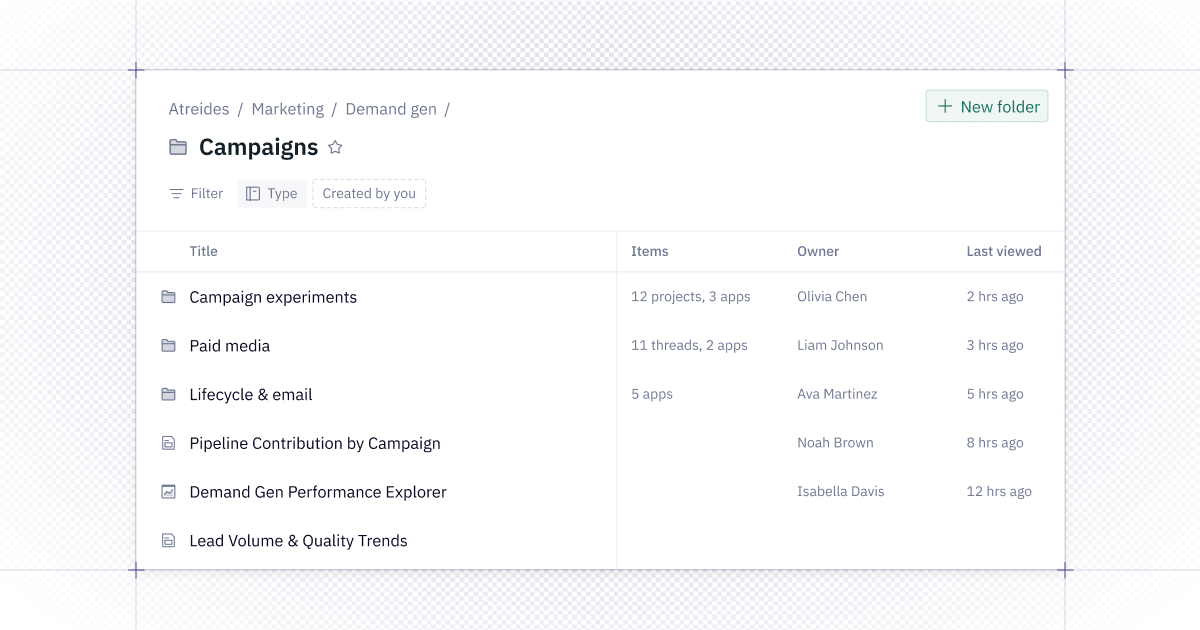
Today, we’re introducing folders, a more flexible and familiar way to organize your workspace.
Organize your workspace's projects into folders, and nest them to match how your team works. The access you grant on a folder cascades to every subfolder and project inside it.
If your workspace has outgrown a flat list of collections, this one’s for you.
⚖️ Folders vs. collections
Folders will replace collections as the main way to organize Hex projects in March 2027. There's a few key differences to be aware of:
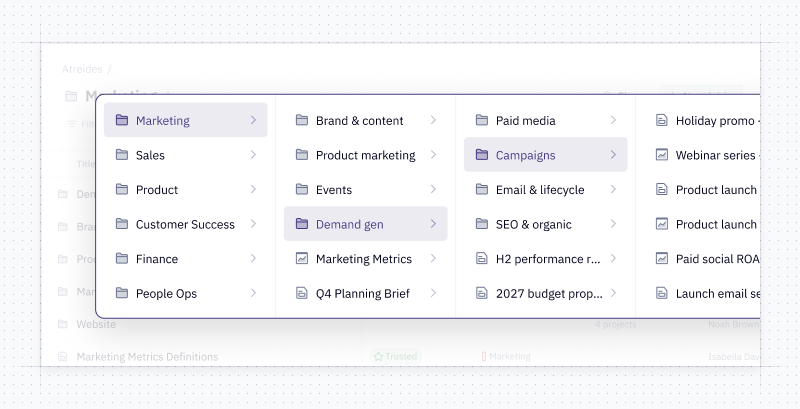
- Folders can be nested — you can put folders inside other folders, up to ten levels deep, organizing your workspace in a way that makes sense for your team.
- Only Admins can create folders in the root of the workspace — other users can be given permission to create subfolders within those folders. No more long sprawling lists of collections.
- Permissions have been simplified — folders and projects inherit access from the parent folder, with permissions applied consistently. Set permissions once on the folder, instead of sharing each project individually.
- Projects can only be in one folder — moving a project into a new folder removes it from its current one.
⚙️ Turn on folders for your workspace
Organizations on the Team plan already have access to folders. If you're on the Enterprise plan, folders have been turned on for Admins only. You can turn on folders for other users in your workspace when you're ready, from Settings → Organization. On Dec. 15th, folders will be shown to all users in your workspace.
🚚 Migrate from collections to folders
If you have existing collections, they will still be accessible to you until March 2027. Admins can migrate collections to folders directly in Hex, or from the CLI with an agent skill to do the heavy lifting. Learn more in the migration guide.
Once you've finished migrating, turn off collections for your workspace from Settings → Organization.