Hex is already the best tool in the world for teams to go from question to answer with data. But sometimes telling your data story is about what happens after you have an answer. How do you put together an engaging story with powerful visuals? How do you combine insights into a narrative that gets people to take action?
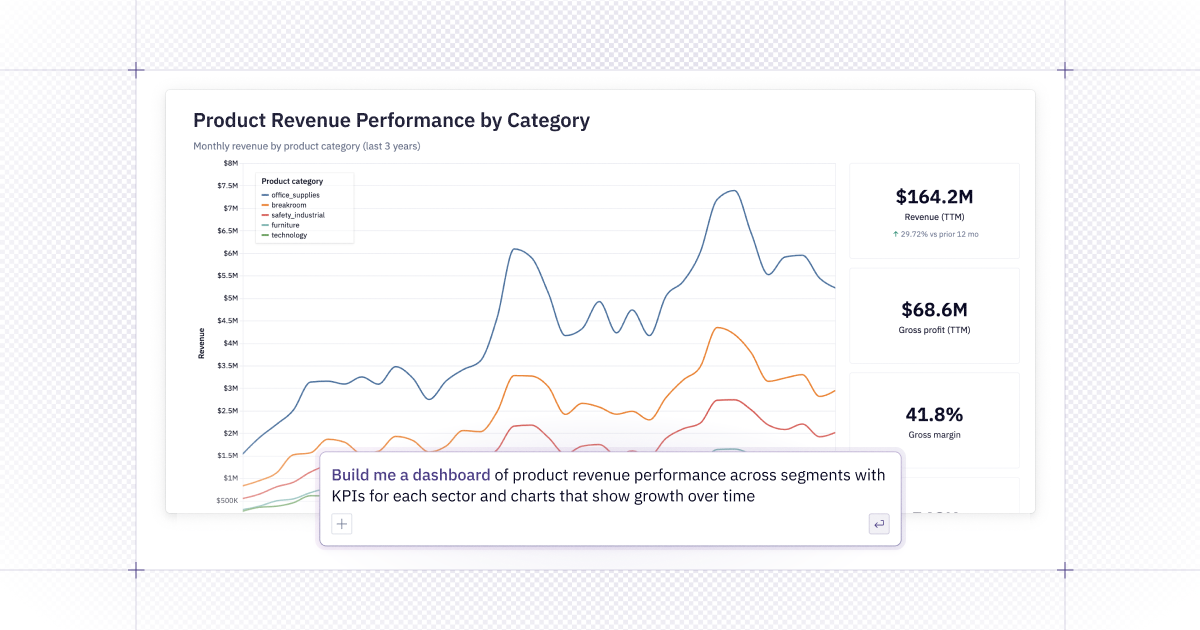
We’ve been hard at work on this. Today, we’re announcing improvements to the Hex Agent that allows you to control more of the story: a full prompt → dashboard workflow, better visualizations, and more improvements to our agents.
Check out how we’re expanding the scope of what you can do with AI & data.
🏎️ Prompt → Dashboard
You now can create a Hex app via our agent with one prompt. Just tell the Hex Agent what you want to build: it can view and create app layouts, create tabs + and edit them.
This takes out the manual work behind building dashboards in Hex.
We’re obsessing over how to enhance the visual stories you can tell in Hex. Stay tuned, we have lots coming soon.
📈 Better visualizations
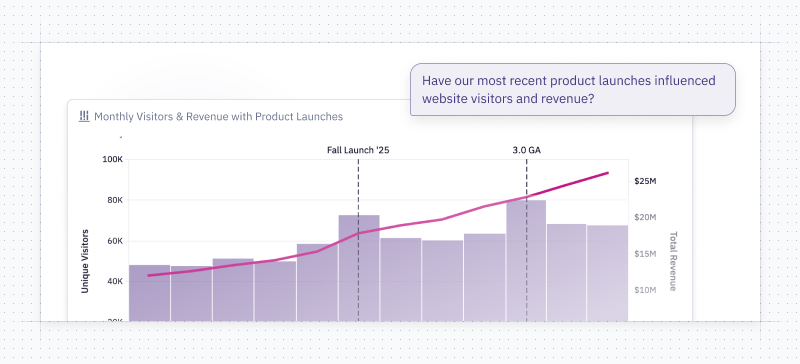
The Hex agent can now build more beautiful charts, including dual axis and charts with reference lines. This is on top of our previous work to build a subagent to ensure higher quality charts. Before the subagent, the main Hex agent handled visualization along with everything else and was often eager to move on with the overall analysis, leaving a trail of subpar charts in its wake. Today, the subagent works diligently to refine visuals and present a clean, precise chart.
Want to learn more about how we did it? Read about it in Madeleine Filloux’s blog.
🛠️ Other improvements
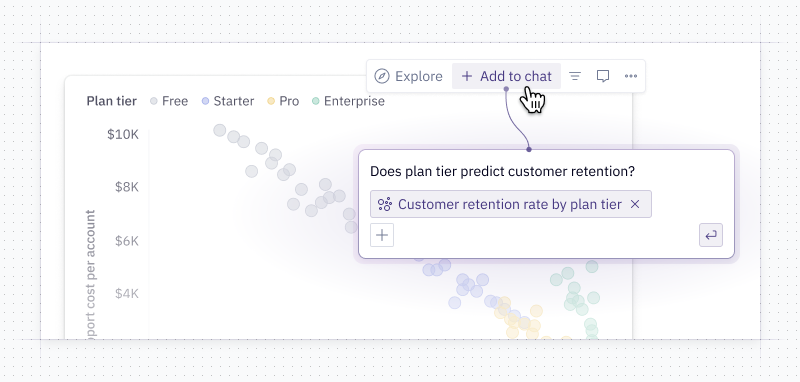
- Add cells to chat with a click - from any cell in a published app you can now click Add to chat and start asking questions in the published app about it! This makes it easy to tell the agent to focus on a specific cell that interests you even if you don’t know the cell’s name to @ mention it.
- Control which data connections are available via MCP - Admins now more flexibility into which data connections the Hex Agent can use with external integrations. This is especially helpful when you have data you don’t want leaving Hex, like PII data, but still want to enable MCP or Slack integration. Each data connection can be toggled on or off for external integrations. When a data connection is excluded from MCP access, the agent will inform users that it can’t fully display the data, and link the user back into Hex to view it.
- New running UI in the notebook - we’ve added a new UI which shows which cells are running. Just hover over the project run button when your notebook is running. You can click a long-running cell to get scrolled to the offending part of your project.
- Kernel Management for Admins - Admins and Editors can now view, and stop, actively running kernels. They can stop individual kernels, or all of them at once - Admins can manage all active kernels in the workspace, and Editors can manage their own kernels. This is helpful when you have critical projects that need to run (including scheduled runs) but are bumping up against kernel limits.