Optimizing your data connections for the Hex Agent
This tutorial covers best practices for data connection configuration so the agent can find the right data quickly and accurately.
The Hex Agent can automatically discover and select the right data connection for each question, removing the need for users to manually choose a connection before asking. This is especially powerful in workspaces with multiple data connections — the agent reasons about where data lives so your team doesn't have to.
How the agent selects connections
To answer a user's question, the Agent searches across all connections, databases, schemas, and tables that are included for AI and that the user has access to. It uses connection names, descriptions, and schema metadata to determine which connection contains the relevant data—and can query multiple connections within a single conversation if needed.
Users can steer the Agent toward a particular data connection by selecting it in the data connection picker at the start of a Thread. The Agent will prioritize that connection first, but can switch to or add other connections in the same conversation when useful.
The better your connection metadata, the more accurately and efficiently the agent will route queries.
Best practices
1. Write clear data connection descriptions
Each data connection has an optional description field. This is one of the primary signals the agent uses when deciding which connection to query. A good description should:
- State the domain or purpose of the connection (e.g., "Production analytics warehouse containing marketing, sales, and product usage data").
- Mention the key datasets or subject areas it contains.
- Note any important distinctions from other connections (e.g., "This is the read replica for reporting — use this for historical analysis rather than the transactional database").
Avoid vague descriptions like "Main database" or "Data warehouse" when you have multiple connections — the agent needs enough context to differentiate between them.
Where to set this: Workspace settings → Data sources → Data connection settings → Description field, or the Data browser → Warehouse tab.
2. Include and exclude connections for AI
Every data connection has an AI usage setting that controls whether the connection is included in the agent's default discovery and generation context. Review your connections and:
- Include connections that contain data your team should be able to query via the agent.
- Exclude connections that are for internal infrastructure, staging environments, ETL scratch spaces, or any data that shouldn't surface in agent responses.
Excluding irrelevant connections reduces noise and helps the agent focus on the right data sources.
Where to set this: Workspace settings → Data sources → Data connection settings → Advanced tab → "Included for AI" / "Excluded for AI" toggle or Data browser → Warehouse tab → Choose your specific connection and swap the toggle in the top right.
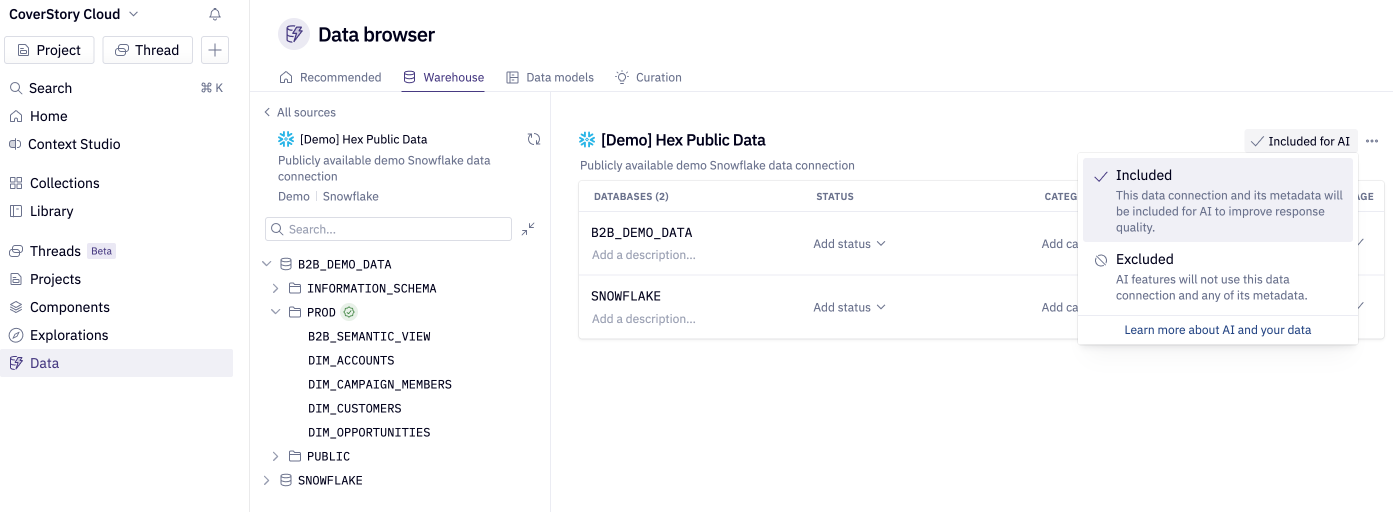
3. Curate AI visibility at the schema, table, and column level
Beyond the connection level, you can fine-tune what surfaces in the agent's default context by toggling "include for AI/exclude for AI" at the database, schema, and table level. This is especially useful for large warehouses where only a subset of schemas are relevant for analysis.
Consider excluding:
- Staging or intermediate transformation schemas (e.g.,
stg_,tmp_,raw_) - Internal system tables or audit logs
- PII-heavy tables that shouldn't be queried ad hoc
- Deprecated or legacy schemas
Including only the schemas and tables your team actually uses dramatically improves the agent's accuracy and reduces the chance of it querying the wrong table.
Where to set this: Data browser → select a connection → navigate to the database, schema, or table level → toggle include for AI/exclude for AI.
4. Add descriptions to schemas, tables, and columns
At each level of the data hierarchy, you can add descriptions that help the agent understand what the data represents. These are especially valuable for:
- Tables with unclear names — e.g., adding "Daily aggregated product usage metrics by account" to a table called
fact_dau. - Columns with domain-specific meaning — e.g., describing
mrras "Monthly recurring revenue in USD, calculated at the account level". - Schemas that group related data — e.g., "Contains all finance and billing data models".
If you use dbt, metadata descriptions from your dbt project are automatically synced and surfaced to the agent. You don't need to duplicate them in Hex — but you can supplement them with additional Hex-specific context if needed.
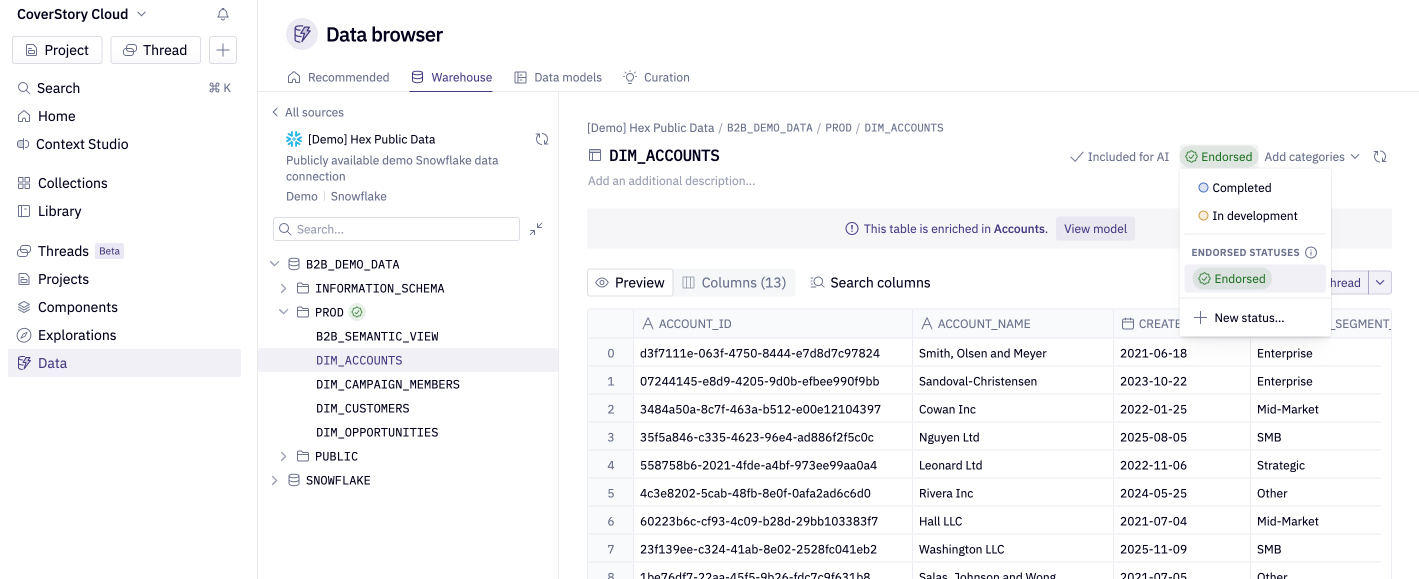
5. Endorse trusted tables
Endorsed tables signal to the agent (and to your team) which tables are the canonical, trusted source for a given domain. The agent prioritizes endorsed tables when multiple tables could answer a question.
Focus endorsements on:
- Modeled, well-documented tables (e.g., dbt marts)
- Tables that represent your team's agreed-upon source of truth for key metrics
- Widely-used tables that appear in many projects
Where to set this: Data browser → select a table → set its status to "Endorsed".
6. Use schema filtering to limit scope
If a connection contains hundreds of schemas but your team only uses a handful, use schema filtering on the connection to restrict which schemas are synced and visible. This reduces metadata overhead and prevents the agent from discovering irrelevant schemas.
Where to set this: Workspace settings → Data sources → Data connection settings → Schema filtering.
7. Review connection access permissions
The agent respects your existing data connection permissions. A user can only query connections they have view access to. Before auto-selection is enabled:
- Verify that connection permissions align with your data governance policies.
- Ensure users who should not query certain connections do not have "Can Query" access to them.
The agent will never expose data from a connection a user doesn't have permission to view.
Where to set this: Workspace settings → Data sources → Data connection settings → Access.
Preparing data connections for the Hex Agent in external integrations
Automatic data connection selection is especially important when someone uses the Hex Agent from an external integration — for example the Hex Agent in Slack or the Hex MCP Server — because they cannot use the in-app connection picker before asking a question. Previously, a workspace admin needed to configure a single default connection for external integrations, which limited the agent to only one data source.
With automatic connection selection, the Hex Agent can query across all connections available to the user who started the Thread, which is much more useful for workspaces with diverse data sources. The same best practices above apply — clear descriptions and curated metadata help the agent respond accurately.
To mark connections as sensitive for those external surfaces, use Settings → Integrations → Configure sensitive data connections for external integrations, or open a connection under Settings → Data sources and use the Access tab. Sensitive connections are unavailable to the Hex MCP Server, and Admins control how the Hex Agent in Slack treats them. See Sensitive data connections for external integrations for more information.
