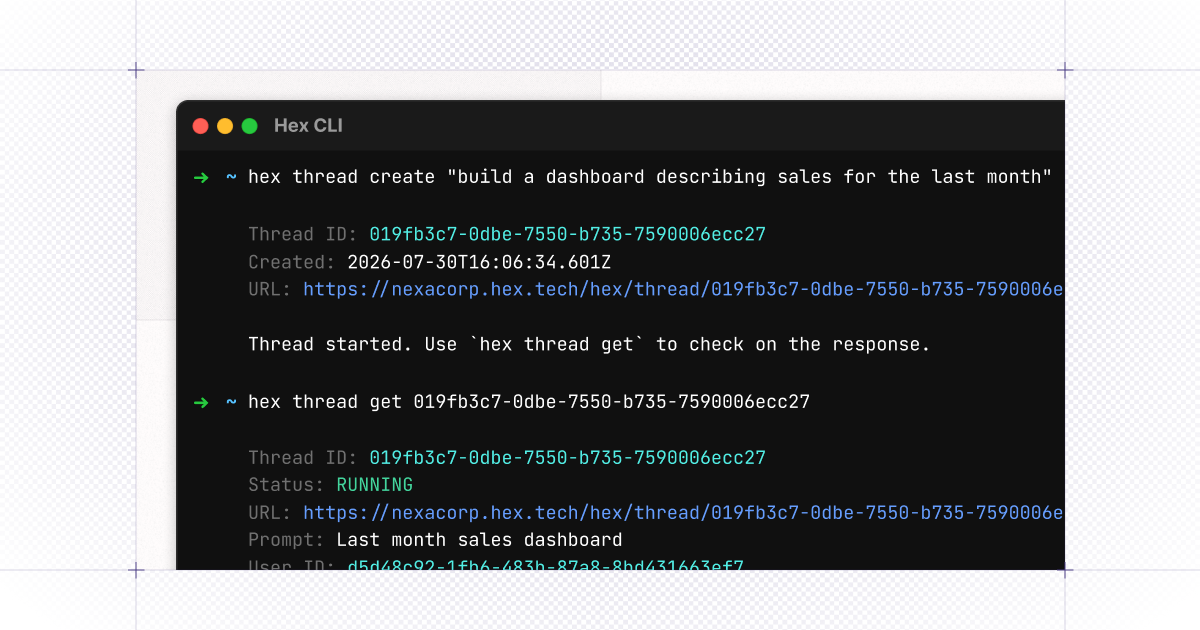
🤖 Hex Agent via CLI and API
You can now have conversations with the Hex Agent via CLI and API, so you can set it to work from the tools and scripts you already use, not just the browser. A few things that unlocks:
- Kick off a thread with the agent right from the command line by running
hex thread create— the agent finds the tables, builds the analyses, and hands you back a link to the project without any separate coding tools. - Wire the agent into where your teams already working via API — you can ask questions in your coding agent, in your terminal, or whatever other app you’re working in, and get detailed analysis powered by the Hex Agent.
- Migrate off your old BI tool by pointing the agent at a dashboard and having it rebuild the thing as a Hex project instead of porting queries by hand.
Ready to get started? If you have enabled API access enabled, just paste the following in your terminal (or check out the documentation here)
curl installer: curl -fsSL https://hex.tech/install.sh | bash
homebrew installer: brew install hex-inc/hex-cli/hex
💻 Cell outputs in the CLI
If you've ever run a cell and wondered "wait, what did that output actually look like?" This is for you.
The Hex CLI can now show you what a cell actually returned, right in your terminal, so you don't have to run something and then flip back to the browser to see what happened.
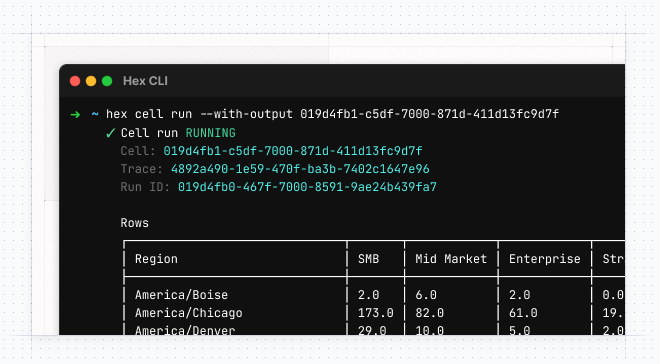
Add --with-output to your next hex cell run or hex cell get.
Fetching a big table that won't fit a terminal window? The CLI will switch between a horizontal and vertical layout depending on the space it detects when returning results. We also added the vertical layout to all CLI commands that render a table, with new --expand and --no-expand flags.
🔗 See which resources the agent used
The Hex Agent can pull from a ton of context — guides, tables, semantic models — and until now it was hard to see what it actually reached for. Now Hex shows you the resources the agent used, and even distinguishes whether it just looked at a resource or actually used it in the analysis.
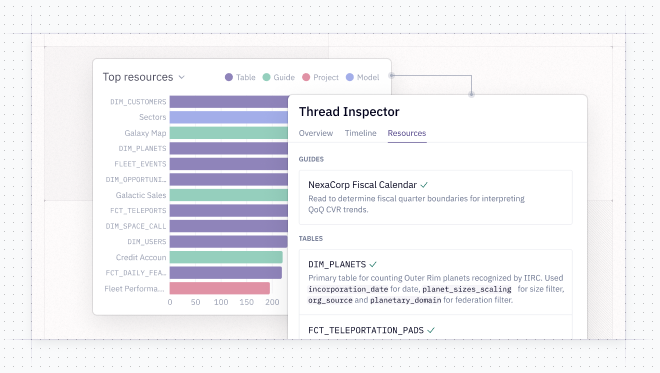
It shows up in three places:
- Open the Thread Inspector in any thread to see its resources.
- Head to the Context Studio to see which of your guides and tables are actually earning their keep across your workspace, so you know what to invest in and what to prune.
- Use an agent to analyze the data via CLI and **the resources in the output.
So instead of guessing whether the agent found the right guide or leaned on the wrong table, you can see it, and tune your context accordingly.
🧠 Claude Opus 5
Claude Opus 5, Anthropic's newest and most capable model, is now in the model picker. It's the strongest option in Hex for complex, open-ended analytical work, and it holds up impressively well even at lower effort levels.
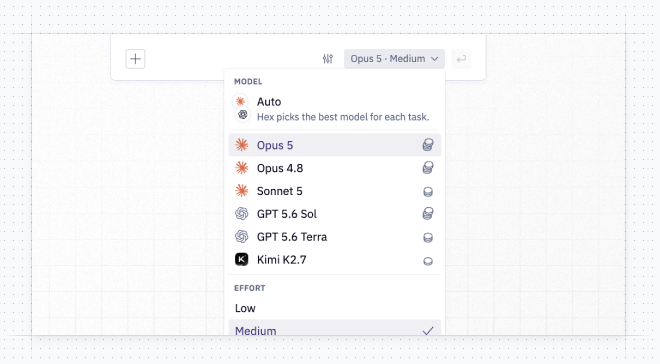
It's a premium model, so use it for your hardest questions rather than routine lookups. Pick it in personal settings, or switch to it when you prompt the agent.
🔄 Faster schema refreshes for Snowflake
For Snowflake, a refresh now fetches only what's changed instead of all objects in your warehouse. For a typical Snowflake connection, this means we’re refreshing only 30% of the tables in the schema browser. Some customers have experienced up to 10x faster schema refresh times as a result of this change.
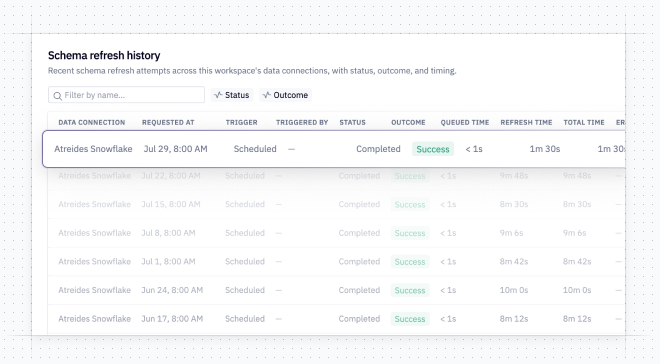
With this change, and other improvements we’ve made to our system behind the scenes, we’ve made refreshes significantly lighter on our system. Every data connection, regardless of warehouse, benefits from these changes — if your refresh has ever been stuck “queueing”, you’ll see this happen far less often.
🛠️ Other improvements
- Quicker simple charts from the agent: The Hex Agent now builds straightforward charts directly instead of handing off to a separate step, so simple visualizations show up faster. It still brings in the specialist for complex, highly customized charts.
- Search settings: Hit Cmd + K from settings to jump straight to the setting you’re looking for.
- Configure how the Hex Slack integration treats sensitive connections: Previously, we had a setting that excluded a data connection from use for the Slackbot and MCP. Now, Admins can choose how the Slack integration treats those connections: the connections can be ignored completely (same as today), or they can be used, but the Agent will only send a link to the thread, rather than posting directly to Slack.