Working with Hex from anywhere
No matter what data, app, or model provider you use, Hex is built to meet you where you are.
You can ask data questions, build and edit projects, and manage your workspace from the AI tools you already work in: Cursor, Claude Code, Claude Desktop, ChatGPT, Codex, and most other MCP-compatible clients, and choose which model powers the work, without ever opening app.hex.tech.
Working with Hex from an external AI tool requires the Team or Enterprise plan.
- Work from your existing tools. Ask questions, kick off analyses, build generative apps, and manage workspace resources from Cursor, Claude, ChatGPT, Codex, or any standard MCP client — via the Hex MCP server — or from the terminal via the Hex CLI.
- Choose your model. Pick the model and effort level that runs the Hex Agent for a given task — from a fast, inexpensive model for routine lookups to a frontier reasoning model for open-ended analysis — no matter which surface or entry point you're working from. Admins can adjust the default model for your workspace.
- Work with any data. Every entry point uses the same governed context as the Hex app: endorsed tables, semantic models, and workspace guides, scoped to the data connections you have access to.
Bring your own environment
Claude
Connect the Hex Connector in Claude to search projects, start Threads, and get answers without leaving your chat. Claude renders an interactive widget that follows the Hex Agent's thinking in real time and surfaces any charts or tables it produces.
Analysts working in Claude Code can go a step further: use the bundled Hex CLI integration to create and edit notebook cells, and publish finished analysis to Hex as a durable, shareable project.
Setup: Settings → Connectors → Browse Connectors in Claude, then point it at https://app.hex.tech/mcp (or your workspace's custom URL).
Details: Connect Hex to Claude.
Cursor
Install the official Hex plugin from the Cursor Marketplace (/add-plugin hex), or connect via remote MCP if you're on a single-tenant, EU, or HIPAA workspace. Once connected, mention @hex to search projects, ask data questions, and start Threads — and, with edit access, create or modify Hex notebooks directly through the bundled CLI integration.
Details: Connect Hex to Cursor.
ChatGPT
Add the official Hex app from the ChatGPT Apps directory, authorize your workspace, and mention @Hex (or enable it from the Tools menu) to search projects and ask data questions from inside ChatGPT.
Details: Connect Hex to ChatGPT.
Codex
Install the Hex plugin from Codex's Plugins menu, connect and authorize, then mention @ to invoke Hex or one of its bundled skills. As with Cursor, users with edit access can create and modify Hex notebooks through the bundled CLI integration.
Details: Connect Hex to Codex.
Other AI tools and MCP clients
Any client that supports custom MCP connectors — internal tools included — can connect to the Hex MCP server. Add the endpoint to your client's configuration:
{ "mcpServers": { "hex": { "url": "https://app.hex.tech/mcp" } } }
Replace app.hex.tech with your custom Hex URL if you're on a single-tenant, EU multi-tenant, or HIPAA multi-tenant workspace (for example, eu.hex.tech). See Connect Hex to other MCP clients for the full list of supported clients, including Glean and Figma.
The terminal, via Hex CLI
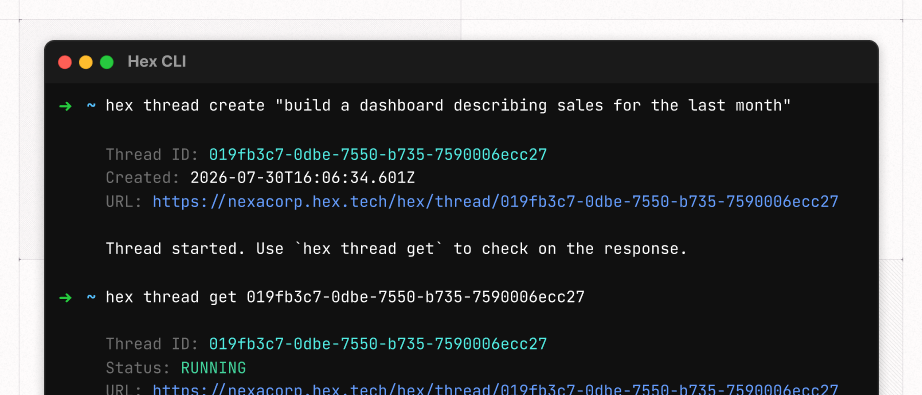
For teams that live in the command line, the Hex CLI manages projects, cells, runs, data connections, and workspace resources directly — and it's built to be driven by a local coding agent (Claude Code, Cursor, Codex) as easily as by a person.
brew tap hex-inc/hex-cli
brew trust --tap hex-inc/hex-cli
brew install hex-inc/hex-cli/hex
From there, an agent in your terminal can spin up a Thread (hex thread create), create and edit cells, trigger runs, and hand you back a link to the finished project — without a browser tab open at any point.
Choose your model
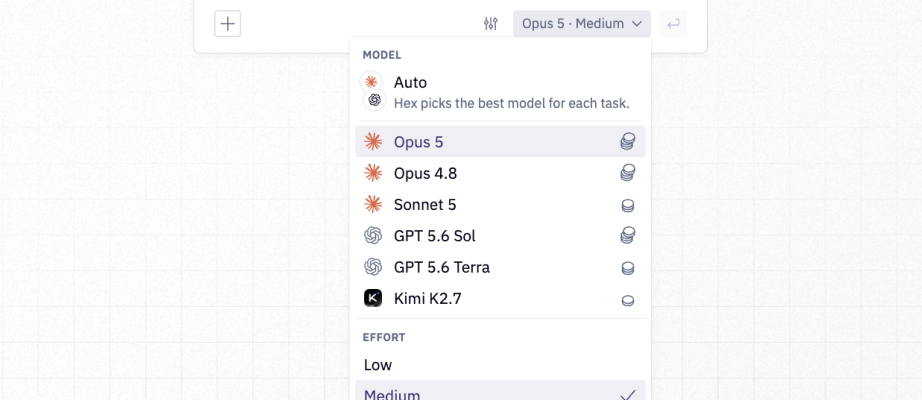
Every Hex Agent surface — Threads, the Notebook Agent, Chat with App, Slack, MCP, and CLI — shares the same model & effort picker. You're never locked into one model or one vendor:
- Auto is the default: Hex selects the model best suited to the task based on its own evals. This is where every new Thread starts unless an admin has set a different workspace default.
- Pick a specific model when you want more control — reach for a frontier reasoning model (like Claude or GPT's top-tier models) on your hardest, most open-ended analysis, or a lighter/cheaper model for routine lookups and simple transformations.
- Effort is available once you've selected a specific model, and maps to the effort levels exposed by the underlying provider (see Anthropic's effort levels and OpenAI's reasoning effort docs for how each behaves).
- Admins can set a workspace-wide default model, in Settings → AI & Agents, which applies across every surface and entrypoint — including MCP and the CLI — so teams don't have to think about it unless they want to.
Model selection is stored per-Thread, so reopening a conversation restores your last-used model and effort. For guidance on when to reach for which model, see Model picker best practices.
Work with any data
Hex is not limited to any one data warehouse or semantic model provider.
Wherever you start a conversation, the Hex Agent searches through your workspace to find the appropriate data. It prioritizes endorsed tables, semantic models, and workspace guides (Admins can configure Explorers to work in Endorsed Mode, which leverages endorsed tables and semantic models only). For more complex analysis, the agent can create cross-database joins, custom queries, or add data from files. Your work is scoped to the data connections you personally have access to. If your workspace has a default data connection, that's searched first.
Admins can mark specific data connections as Sensitive, which external integrations — including the Hex MCP server and the Hex Agent in Slack — will never use, regardless of which client or model is asking the question. Configure this under Settings → Integrations → Configure sensitive data connections for external integrations. See Sensitive data connections for external integrations for details and best practices.
Example: asking a question from Cursor
- In Cursor, mention
@hexand ask a question, e.g. "What were our top-selling products last quarter?" - Cursor calls the Hex MCP server, which creates a new Thread scoped to your accessible (non-sensitive) data connections.
- The Hex Agent researches, queries, and builds a result.
- Ask a follow-up in the same chat; Cursor continues the same Thread rather than starting over.
- Prompt the agent to create a data app based on the insights you found, with any design instructions you have in mind, and you’ll get a complete, publishable data app that you can share with others to reuse the insights again and again.
The same flow works from Claude, ChatGPT, Codex, or your terminal.