Import and export projects
Hex supports two different file formats for importing and exporting your projects outside of Hex.
- Users will need the Admin or Editor role.
Importing existing Jupyter Notebooks provides a convenient way to migrate existing work into Hex, while exporting Hex projects provides a way to enable versioning workflows, as well as the ability for teams to own their code, and make bulk changes as required.
Hex lets you import and export projects in two different file formats:
- Jupyter Notebooks (
.ipynbfile): You can import an existing Jupyter Notebook file as a new Hex project and export existing Hex projects as Jupyter Notebooks. Note that some Hex-specific functionality, like SQL cells or Input parameters, will break when exporting projects as a Jupyter Notebook. - Hex file format (
.yamlfile): The Hex file format represents the logic of your entire project (including the layout of an app) as a YAML file. It’s fully compatible with all features of Hex, and does not contain any potentially sensitive outputs of your project.
Where possible, we recommend using the Hex file format for importing and exporting projects. This is because Hex is able to “round trip” projects with this format (i.e. export a project, and then re-import it as an identical project), it is easier to perform code review on due to the human-readable nature of the YAML format, and project outputs are excluded from the file.
🆕 The Hex file format is a new feature. If you have feedback on the implementation, we’re all ears.
Import projects
To import an existing Jupyter Notebook or Hex file as a project, select the Import button from the home page and upload either a .ipynb or .yaml file.
Import a new version of a project
This is only available for the Hex file format as Hex relies on information encoded in the Hex file format to track changes to a project.
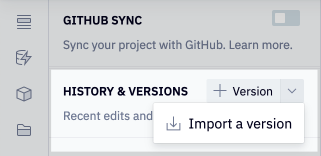
To import a Hex project as a new version of an existing project, visit the History & Versions sidebar, and choose Import a version from the + Version drop down menu.
Export projects
Workspaces on the Team and Enterprise plans can export projects to a Git repo. Read the Git Export docs for more information!
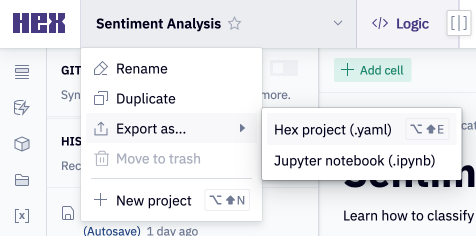
To export an existing Hex project to either file format, select Export from the dropdown menu in the project title.
Validate the Hex file format with JSON Schema
The Hex file format has a public JSON Schema published on SchemaStore. Any editor with YAML language server support can use it to check your files as you edit them outside of Hex — no setup or Hex account required.
Once the schema is applied, your editor gives you:
- Validation: flags fields that don’t match the Hex file format as you type.
- Autocomplete / IntelliSense: suggests valid keys and values.
- Hover documentation: shows descriptions for fields as you write them.
In VS Code and VS Code–based editors, opening a Hex file prompts you to install the YAML extension, which pulls the schema from SchemaStore automatically.
Because the schema is public, you can also use it to programmatically validate or interpret Hex files outside Hex — for example, in custom tooling or in CI.
Schema detection is filename-based, so editors apply it to files matching *.hex.yaml. Name your file accordingly to get automatic validation — or start your workflow by exporting with the Hex CLI, which writes files with the correct .hex.yaml extension automatically.