Evals
Measure how reliably the Hex agent answers questions, and track regressions and improvements over time.
- Available on the Team and Enterprise plans.
- Users need the Editor, Manager or Admin workspace role to run evals.
- Users need the Explorer role or higher to view evals.
Evals let you programmatically run threads with the Hex agent and grade each response against rubrics you define. You can use evals to:
- Establish a baseline for questions the agent should answer reliably
- Test changes to guides and semantic models before you publish them
- Catch regressions in agent behavior
- Measure consistency, run time, and credit usage
- Compare performance across context or model configurations
Because eval suites are defined in YAML files, you can keep them in version control alongside your context files and include them in your development workflows.
You can also publish your eval suites to Hex and add a schedule to run your suites on a periodic basis. Once you publish an eval suite, you will be able to see the performance of eval runs over time in the Hex UI.
Terminology
An eval suite holds one or more cases, each graded by one or more rubrics. When you run a suite, the agent answers each case's prompt in its own thread.
- Eval suite: A group of cases and their rubrics, defined together in one YAML file.
- Case: A single test that defines a prompt given to the agent and settings for how the thread should run (attempts, Endorsed Mode, etc.).
- Rubric: A pass/fail check applied to a case. One case can have multiple rubrics — for example, one rubric might verify the agent used the correct guide, while another checks whether the final answer includes the expected value.
- Run: One execution of a suite. Review run results from the CLI or in Context Studio.
Run your first eval
Before you begin, make sure:
- The Hex CLI is installed and authenticated
- You have an Admin, Manager, or Editor role in the workspace
- You have access to any resources referenced by the eval
The example below defines a single case with one rubric — enough to create and run your first suite. See Write an eval suite for the full schema.
Create a file named first-eval.yaml:
name: My first eval suite
cases:
  - id: math-check
    prompt: What is 2 + 2?
    attempts: 1
    rubrics:
      - id: says-four
        type: judge_final_answer
        criterion: Does the final answer say the result is 4?
Start the run:
hex eval run ./first-eval.yaml
The command returns a suite run ID and a link to the run in Context Studio.
Billing
Running a suite consumes credits, similar to any other agent activity in Hex. Each case runs a real agent thread, and the result is graded by an LLM judge. Credit usage includes both the underlying agent thread and the judge.
Credits are attributed to the user who starts the suite run. Hex uses that user’s available credits first, then draws from the workspace’s shared credit pool if needed.
Bootstrap a suite with your coding agent
To build a suite grounded in how your workspace is used, hand this prompt to your coding agent. It walks the agent through installing the Hex CLI, reading your workspace topics and threads, and creating a starter evals.yaml for you to run.
Bootstrapping from workspace usage requires the Manager or Admin role, which is needed to list workspace topics and threads. Editors can still create and run eval suites by writing evals.yaml directly.
Bootstrap prompt
You're going to help me bootstrap an eval suite for our Hex agent, grounded in how our workspace is actually used, so we can test and improve our agent's context. Build the suite from our real usage where it exists, and fall back to our key tables where usage is thin. Follow these steps in order.

1. Check prerequisites. The Hex CLI supports macOS and Linux only; on Windows, run it under WSL. Run `hex --version`. If it's missing, install it:
   - macOS: `brew tap hex-inc/hex-cli && brew install hex-inc/hex-cli/hex`
   - Linux (or WSL): `curl -fsSL https://hex.tech/install.sh | bash`
   Then run `hex auth status`. If I'm not authenticated, stop and tell me to run `hex auth login`; don't authenticate on my behalf. If I have multiple profiles, ask which to use (`hex auth switch <profile>`). This flow needs a Manager or higher role; if a command is rejected as unauthorized, tell me.

2. Install the Hex agent skill and read it. Run `hex install agent-skill` with the flag for your agent environment (`--claude`, `--codex`, or `--path <dir>`), then read the installed SKILL.md, especially the evals section — it documents the `hex eval` commands and how async runs work. For the full `evals.yaml` schema (every case and rubric field), read https://learn.hex.tech/docs/agent-management/evals; the example in step 5 covers the essentials. `hex eval run` validates the file and reports schema errors before starting a run.

3. Find how the workspace is actually used. Hex already classifies threads into workspace topics, so use those instead of inventing categories. Run `hex context topic list --json`, then `hex thread list --topic-ids <id> --num-days 30 -n 100 --json` for each. The list isn't ranked, so rank it yourself by distinct question intent, not raw count: duplicates and our own test/eval runs inflate it, and widen `--num-days` if 30 days looks thin. Pick the 3 to 6 most-used topics and gather about 25 representative threads, reading each with `hex thread get <thread_id> --json` for its `resources` array (the exact tables and semantic models it touched) and `hex thread messages <thread_id> --json` for the conversation, where the agent's replies usually include the SQL it ran. Those two are what make the suite specific to us rather than generically plausible, so don't skip them. Keep notes in a scratch file outside any repo, delete it when you're done, and never copy thread content into evals.yaml. If there are no topics, or usage looks thin, duplicated or synthetic, stop and confirm with me that we should build from expected usage of our key tables instead.

4. Ground the schema and characterize each topic. For each topic or table theme, note how the question gets phrased and what a correct answer depends on: which tables, metrics, and filters the agent should reach for, and any known traps (dedup rules, excluding test/internal rows, valid-order filters, unit mismatches like cents vs dollars). Ground table and column names, in order of preference, in: (1) our workspace guides or context docs, if we maintain them (read these first); (2) the `resources` and message SQL from the threads you read in step 3; (3) the connection's prose description from `hex connection get` as a last resort. Mark any identifier you couldn't confirm against real usage with a `# TODO-verify` comment.

5. Generate `evals.yaml` as a judge-only starter suite. If an `evals.yaml` already exists, show it to me and ask before replacing it. Aim for 5 to 10 cases total. The file has a top-level `name` and a `cases:` list. Each case needs:
   - an `id` prefixed by its topic (for example `revenue-mrr-trend`)
   - a realistic `prompt`: paraphrased, never copied verbatim, with no customer names or sensitive values
   - `attempts` from 1 to 5 (higher surfaces run-to-run variance)
   - 1 to 2 `rubrics`, defaulting to `judge_thread`. Give each a yes/no `criterion` naming the expected sources and the trap to avoid, drawing on steps 3 and 4. `judge_thread` grades against the whole conversation, so it can check method: which tables the agent reached for, whether it deduplicated, whether it excluded test rows. Use `judge_final_answer` only when the criterion is about the delivered answer itself, such as whether it states a single number.
   For a case with a deterministic answer, you can also give the judge ground truth: add an `expectedSql` block to the rubric with `sql` and `dataConnectionId` keys, taking the `dataConnectionId` from `hex connection list --json` (ask me if it's ambiguous). The query runs at grade time and the judge sees its result alongside the conversation. Only do this with identifiers I've confirmed. For a strict numeric check with an explicit tolerance instead of a judge's call, see `numeric_value` in the docs from step 2.
   If my instructions conflict with your recommendation (for example, building from synthetic threads you'd have skipped), say so, proceed as I ask, and note the suite's trust level in a top-of-file comment. Here's the minimal shape:

   name: Starter suite
   cases:
     - id: revenue-mrr-trend
       prompt: "How has MRR trended over the last 6 months?"
       attempts: 1
       rubrics:
         - id: uses-revenue-model
           type: judge_thread
           criterion: Uses the canonical revenue tables and reports a month-over-month MRR trend.
     - id: customers-active-total
       prompt: "How many active customers do we have?"
       attempts: 1
       rubrics:
         - id: dedupes-and-excludes-test
           type: judge_thread
           criterion: Counts distinct customers, deduplicating fragmented ids and excluding test/internal accounts.

6. Don't run the evals yourself. When you're done, tell me to review evals.yaml and then start a run with `hex eval run evals.yaml`. Runs are async; results show up in Hex under Context Studio, then Evals (or via `hex eval get <run_id>`). As a next step, to test whether a context change (guides, warehouse descriptions) improves the agent, compare a baseline run against a run using `--preview-id` before publishing the change.
Review results
Evals can only be defined and run from the CLI, but you can review results in either the CLI or the Evals page in Context Studio.
Review results in the CLI
To find a run, use hex eval list. It returns the most recent runs in your workspace along with their run IDs, suite IDs, status, pass and fail counts, etc.
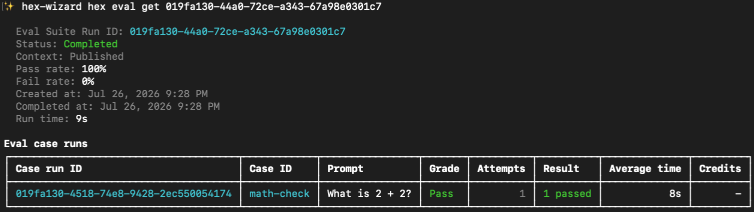
Use hex eval get <suite_run_id> to see a suite-level summary and results for each case.
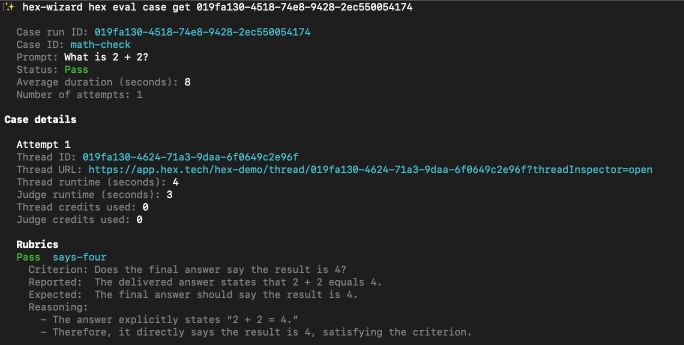
Use hex eval case get <case_run_id> to dig into a single case. This shows each rubric's verdict and the judge's reasoning, and a link to the agent thread so you can see exactly what the agent did.
Append --json to any command for machine-readable output.
Review results in Context Studio
The Evals page is where you can see all eval suites run in your workspace. This page shows an overview of each suite and a summary of recent runs.

Open a suite to see the list of eval suite runs. This page includes the number of cases passed, who ran each suite, run time, and more

You can also select multiple runs to compare them side by side — for example, to compare the same suite using published context versus a Context Preview.

Open a run to see its cases, then expand a case for the full detail: the prompt, each rubric's verdict, and the judge's reasoning for why it passed or failed. Each case also shows its attempts, run time, credit usage, and model. You can open the underlying thread to see how the agent reached its answer.

Cancel a run
A run that's still in progress can be canceled, either from its run page in Context Studio or from the CLI:
hex eval cancel <run_id>
Canceling stops any cases that haven't finished. Cases that already completed keep their grades, and the run keeps a partial summary of those results. Cases that were still running are marked Canceled.
Understand case results
- Pass — all rubrics passed.
- Fail — at least one rubric failed.
- Error — the case could not run or be graded, for example because a required resource was unavailable or the workspace is out of credits.
- Cancelled — the case was still running when the suite run was cancelled.
- Skipped — the case was excluded from a partial run.
A rubric can be marked warnOnly: it is still graded and reported, but it never causes a case to fail or error. See Warn-only rubrics.
Multiple attempts
Each case can run 1-5 attempts. Every attempt is graded independently against the case’s rubrics.
With one attempt, that attempt must pass. With multiple attempts, the case can tolerate one failed attempt and still pass.
If any attempt errors, the case is marked Error, regardless of how many other attempts pass.
The Hex agent is non-deterministic, so the same prompt can produce different responses across runs. Multiple attempts help distinguish a one-off failure, which is tolerated, from a repeated failure that causes the case to fail.
More attempts use more AI credits and take longer to run.
Designing useful evals
Good evals reflect real questions your team expects the Hex agent to answer. A strong suite usually includes two kinds: baseline evals that guard what already works, and hill-climbing evals that test harder questions the agent can't reliably answer yet.
Baseline evals are questions you expect to pass consistently — the canonical facts and definitions your business depends on. Use them to test context changes before publishing and to monitor the ongoing health of the agent in production. This can catch changes caused by dependencies that evolve separately from your published context, such as referenced projects or MCP servers. A few examples:
- Core metric values — a known value for an important business metric: “What was our ARR in March 2024?”
- Canonical definitions — a shared definition the agent should always apply: "How do we define an active customer?"
- Methodology and rules — questions whose correct answer depends on applying the right filters and fields: "How many active customers do we have today?"
Because these usually have a knowable answer, they pair well with a numeric_value or judge_final_answer rubric type. Run them before publishing context changes, and periodically against published context to catch regressions.
Hill-climbing evals are harder, aspirational questions the agent isn't expected to answer reliably yet. Use them to track improvement as you build out your context.
They’re especially useful in a test-driven workflow: write the eval first, then iterate on your guides and semantic models until the agent can pass it consistently. The eval defines the target, and the pass rate shows whether your changes are moving the agent toward it.
The goal is to improve these cases over time without regressing your baseline cases.
Test context changes before publishing
Evals are especially useful when you run them against a Context Preview — a sandboxed fork of your context — before a change reaches production. This mirrors a normal software workflow: fork, change, test, then publish. It assumes you keep your guides and semantic models in a Git-backed context repository.
The editing loop
- Edit your guides or semantic models locally.
- Run
hex context previewfrom a git repository that has ahex_context.config.jsonat its root. This uploads the current working tree to an ephemeral context branch and prints a Preview ID and link. - Run
hex eval run <file> --preview-id <preview_id>to run your suite against that preview instead of currently published context. - Compare to a baseline run (the same suite with no
--preview-id) to see whether the change caused any regressions, or improved your hill-climbing evals. - When you’re ready to publish, run
hex context publish <preview_id>. Replace<preview_id>with-to use the last preview created in this session.
Write an eval suite
An eval suite is defined in a YAML file and requires a name and at least one case. Each case requires an id, a prompt, an attempts count, and at least one rubric.
The example below shows the available suite and case settings, along with all three rubric types.
name: "March MAU checks"
id: march-mau-checks
cases:
  - id: mau-detailed
    prompt: "How many monthly active users did we have in March 2024?"
    attempts: 1   # 1-5; re-runs the case to show variance

    attachments:  # optional
      dataConnectionId: "dc_123"
      tableIds:
        - "dst_123"
        - "dst_456"
      projectIds:
        - "prj_123"

    threadOptions:
      endorsedMode: true

    rubrics:
      # judge_thread: LLM judge over the whole conversation
      - id: counted_distinct_users
        type: judge_thread
        criterion: "Did the agent count distinct users rather than sessions?"

      # judge_final_answer: LLM judge over the final answer only.
      - id: states_the_number
        type: judge_final_answer
        criterion: "Does the final answer give a single MAU number?"
        expected: "18432" # optional ground truth

      # A diagnostic check: measured and reported, but it can't fail the case.
      - id: cites_a_source
        type: judge_final_answer
        criterion: "Does the final answer name the table it queried?"
        warnOnly: true

      # numeric_value (literal target): compare a number within tolerance
      - id: mau_matches
        type: numeric_value
        target: 18432
        tolerancePercentage: 1

      # numeric_value (SQL ground truth): target computed from a query
      - id: mau_matches_sql
        type: numeric_value
        target:
          sql: "SELECT count(distinct user_id) FROM events WHERE date_trunc('month', ts) = '2024-03-01'"
          dataConnectionId: "dc_..."
          timeoutSeconds: 30      # optional, max 120
Suite-level fields
| Field | Required | Type | Notes |
|---|---|---|---|
name | Yes | string | Suite name. Used to derive id when id is omitted. |
cases | Yes | array | The suite's cases. At least one is required. |
id | No | string | Stable identifier used to group runs of the same suite. Derived from name when omitted. |
modelSelection | No | object | Pins the agent model and effortLevel for the suite. |
caseRunSelection | No | object | Runs only certain cases or excludes them. Set either only or except to a non-empty array of case IDs, not both. |
Eval suite limits:
- A suite can contain up to 100 cases
- Each case can run 1-5 attempts
- Each case can have up to 15 rubrics
- A workspace can have up to 3 runs in progress at once
Runs with the same suite ID are grouped together, allowing you to track a suite’s results over time and filter them with hex eval list --suite-id.
If you don’t set an id, Hex derives one from the suite name. Renaming a suite without an explicit id creates a new suite grouping and separates it from earlier runs.
Use hex eval suite ids --search <string> to find existing suite IDs in your workspace.
Case-level fields
| Field | Required | Type | Notes |
|---|---|---|---|
id | Yes | string | Unique identifier for the case within the suite. |
prompt | Yes | string | The question given to the agent. |
attempts | Yes | number | How many times to run the case, 1-5. No default. See Multiple attempts. |
rubrics | Yes | array | One or more rubrics to grade the case. See Rubric types. |
attachments | No | object | Resources to expose to the agent up front. See Attach context to a case. |
threadOptions | No | object | Per-case thread settings, such as endorsedMode. |
Rubric types
Choose a rubric type based on what you want to check.
judge_thread— grades the agent's outcome against the criterion using the full thread, including messages, tool activity, and the final answer. Use this to check how the agent arrived at its answer, such as whether it used the expected table or business definition.judge_final_answer— the same judge, but it sees only the agent's final answer. Use this to check the delivered result itself.numeric_value— checks whether the number from the agent's answer matches a target value or SQL ground truth, within the configured tolerance.
Fields for judge_thread and judge_final_answer
| Field | Required | Type | Notes |
|---|---|---|---|
id | Yes | string | Unique identifier. |
type | Yes | judge_thread or judge_final_answer | judge_thread evaluates evidence from the full thread. judge_final_answer evaluates only the final answer. |
criterion | Yes | string | What the judge checks for, written as a clear pass/fail question or statement. |
expected | No | string | An optional description of the correct answer to grade against. |
expectedSql | No | SQL target | An optional query whose result is the correct answer to grade against. |
warnOnly | No | boolean | Default false. Grade and report this rubric without letting it fail or error the case. See Warn-only rubrics. |
measure | No | string | Groups this rubric with others checking the same quality, so they roll up into one rate. Lowercase kebab-case or snake_case. See Measures. |
expected and expectedSql can be used together. When both are set, the judge sees your description alongside the query result.
Fields for numeric_value
| Field | Required | Type | Notes |
|---|---|---|---|
id | Yes | string | Unique identifier. |
type | Yes | numeric_value | — |
target | Yes | number or SQL target | Fixed number, or { sql, dataConnectionId } run at grade time. Optionally add timeoutSeconds (max 120s). |
tolerancePercentage | No | number | Allowed difference as a percent of target. Default 1. Applies even when absoluteTolerance is set. |
absoluteTolerance | No | number | Allowed difference as a fixed amount, in the target’s units. Checked in addition to tolerancePercentage, not instead of it — a value passes if it's within either. For an exact match, set both absoluteTolerance: 0 and tolerancePercentage: 0. |
outputFormat | No | int or float | Default float. |
strictHeadline | No | boolean | Default true. Grades the number identified as the answer’s primary result, and fails the rubric if no primary result can be identified. Set to false to pass when any number in the response matches the target. |
extractionGuidance | No | string | Hint for which number to grade when the answer has several, e.g. "the enterprise ARR, not total ARR". |
warnOnly | No | boolean | Default false. Grade and report this rubric without letting it fail or error the case. See Warn-only rubrics. |
measure | No | string | Groups this rubric with others checking the same quality, so they roll up into one rate. Lowercase kebab-case or snake_case. See Measures. |
Warn-only rubrics
Any rubric can set warnOnly: true. It is graded and reported like any other rubric, but it cannot fail or error its case, so a check that does not pass will not lower your suite's pass rate.
rubrics:
  - id: cites_a_source
    type: judge_final_answer
    criterion: "Does the final answer name the table it queried?"
    warnOnly: true
Use it for diagnostic checks: things worth measuring and tracking over time, but that should not decide whether a case passes. It also lets you trial a new rubric on real runs, so you can see how often it would fire before it can fail a case. Omit the field and the rubric counts toward the case result as normal.
This covers grading errors as well as failures. If a warn-only rubric cannot be graded at all, for example because the judge call fails, the case is still unaffected.
Every case needs at least one rubric that is not warn-only. A case whose rubrics are all warn-only is rejected when you submit the suite.
Measures
A measure groups related rubrics across cases, so you can see how often the agent passed that type of check across the whole suite.
For example, several cases might include rubrics that check whether the agent used the correct tables or definitions to reach its answer. If those rubrics all use the correct-method measure, you can see how often the agent passed that check across the suite instead of reviewing each rubric individually.
Measures are optional. A suite without measures works the same way as a suite with them.
You can add measure to any type of rubric:
rubrics:
  - id: counted_distinct_users
    type: judge_thread
    criterion: "Did the agent count distinct users rather than sessions?"
    measure: correct-method
A rubric can have at most one measure, and the same measure can be used across multiple rubrics and cases. Measure names are lowercase kebab-case or snake_case and must start with a letter.
Measures are scoped to a suite. Measure names are user-defined rather than selected from a predefined list, so it’s important to use them consistently within a suite. Here are some suggested measures:
| Measure | Checks |
|---|---|
objective-met | The agent answered the question that was asked. |
correct-method | It got there the right way — right tables, filters, and definitions. |
answer-grounded | The answer is backed by what the agent actually queried. |
These are examples, not predefined values. We recommend naming measures so that a passing check represents a positive outcome. That way, a higher pass rate consistently means better performance.
A measure is identified by its exact string name. If you rename a measure, results recorded under the old name will not be included in the new measure's history.
A measure's pass rate shows how often the rubrics tagged with that measure passed. Every tagged rubric counts equally within its case, and every case counts equally across the suite, however many attempts it ran. Tagging more rubrics with the same measure, or running more attempts, adds confidence rather than weight. Checks that errored or were not graded are excluded rather than counted as failures.
Warn-only rubrics still contribute to a measure's pass rate. This lets you track a check across the suite without making it affect whether the case passes. As a result, a case can pass even if one of its measures has a pass rate below 100%.
Once a suite defines measures, their pass rates appear with the rest of the run results in the CLI and on the Evals pages in Context Studio.
Attach context to a case
Use attachments to point a case to specific resources — a data connection, tables, semantic datasets or views, or projects. This gives the agent that context up front, the same way @-mentioning a resource does in a normal thread.
You must have access to whatever you reference, or the run errors with UNAUTHORIZED.
| Field | Type | Notes |
|---|---|---|
dataConnectionId | string | Data connection to expose to the agent |
tableIds | string[] | Specific data-source tables |
semanticDatasetIds | string[] | Semantic datasets |
semanticViewIds | string[] | Semantic views |
projectIds | string[] | Hex projects |
To restrict the agent to endorsed resources for a case, set threadOptions: { endorsedMode: true }.
Compare models
You can pin a model and effort level for a single run:
hex eval run ./my-suite.yaml --model <model_name> --effort medium
--model and --effort must be provided together. Valid effort levels are low, medium, high, xhigh, and max.
You can also set a default model and effort level in the suite definition:
name: "March MAU checks"
id: march-mau-checks

modelSelection:
  model: <model_name>
  effortLevel: medium

cases:
  # ...
If both are provided, the CLI flags override the suite’s modelSelection. If neither is provided, the run uses your workspace default.
The selected model must be available in your workspace.
Publishing your eval suites
- Users need the Manager or Admin workspace role to publish evals.
You can sync your eval suites stored in your repo via the Hex CLI or third-party CI like GitHub Actions. See Context Sync for more details.
Once you have published your eval suites, you can trigger a one off run using the latest published eval suite or setup a schedule to run this suite on a periodic basis.
You can trigger a run via the CLI using the eval suite ID to run the latest published version of the suite. The eval suite ID is the id field in the eval suite YAML definition. If no id field is present, the name is converted into an ID (e.g. name: "My Eval Suite" becomes id: my-eval-suite).
hex eval run --suite-id <eval_suite_id>
You can see all published suites using the hex eval suite list command, and also see all runs by from a published suite by adding the --suite-id option to the hex eval list --suite-id <suite_id> command.
Setting up a schedule
You can also set up a schedule on a published eval suite. Scheduled evals will always run the latest version of an eval suite. You must be a manager or above to set up and run a scheduled eval run.

Scheduled evals run on a fixed schedule — daily, weekly, or monthly — within a 2-hour delivery window you select at setup. Hex uses these windows to distribute load across the platform. Pick a cadence in the schedule selector, choose the day and time the eval should run, and then save your schedule.
You can also configure scheduled evals via the CLI using the following commands:
hex eval schedule create <suite_id> --cadence <daily|weekly|monthly> --start-hour <start_hour> --timezone <timezone>- valid start-hour choices are:
6,8,10,12,14,16,18,20,22, where each has a 2 hour window, except for 22hrs which is anytime between 22hrs and 6hrs the following day. - timezone is an IANA timezone (e.g.
America/Los_AngelesorEurope/London) - if specifying weekly, you must also specify a
--day-of-week - if specifying monthly, you must also specify a
--day-of-month
- valid start-hour choices are:
hex eval schedule update <schedule_id>hex eval schedule delete <schedule_id>hex eval schedule get <schedule_id>hex eval schedule list