Tasks
Schedule the Hex Threads agent to run on a recurring cadence and deliver the result as a Slack message or email — so you and your stakeholders get answers without ever logging into Hex.
- Tasks are in Beta.
- Tasks are available on the Team and Enterprise plans, which include monthly per-seat credit grants that can be used towards Hex AI features.
- Users require an Explorer role or higher to create Tasks.
A Task is a saved prompt, with context, that runs the Threads agent on a recurring schedule and delivers the result to a Slack channel or email. It is the simplest way to take a one-off question — "what were our top product signups yesterday?", "any anomalies in revenue this week?" — and turn it into a recurring insight your team sees in the place they already work.
Each scheduled Task kicks off a brand-new Thread, so recipients always get a full, explorable analysis that the task creator can continue to converse with.
Tasks are different from Scheduled runs: a Scheduled run executes a previously published Hex app, while a Task runs the Threads agent against a fresh prompt and delivers a freshly produced answer.
Creating a Task
From the Tasks page
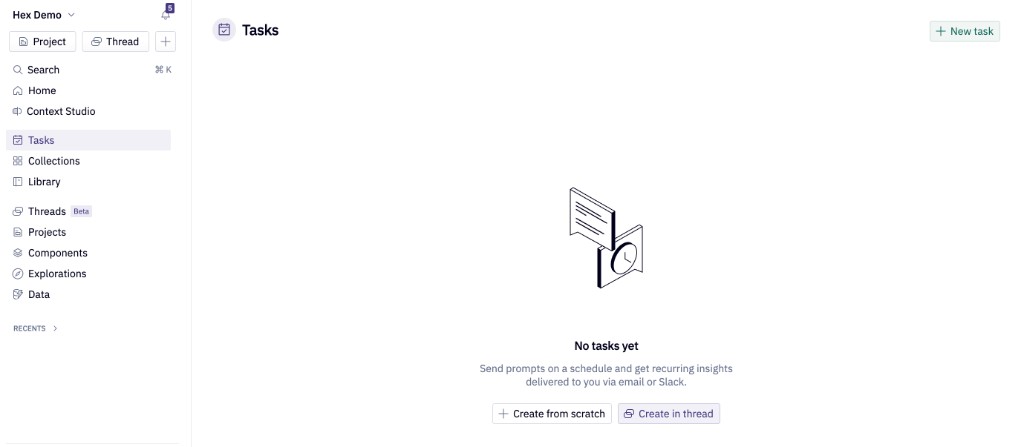
Open Tasks in the left sidebar from your workspace home page and click New task to open the Task editor.
From an existing Thread
Ask the agent in any Thread to set up a Task for you (e.g. "create a Task to run this every Monday morning"). The agent has a tool for creating Tasks and will pre-fill the title, prompt, context, and a sensible schedule based on your conversation, which you can review before saving.
Creating a Task directly from a Thread is the fastest path when you've already iterated on a question and have an answer you like — the Task inherits the same prompt and context, so the recurring runs start from a known-good baseline.
Configuring a Task
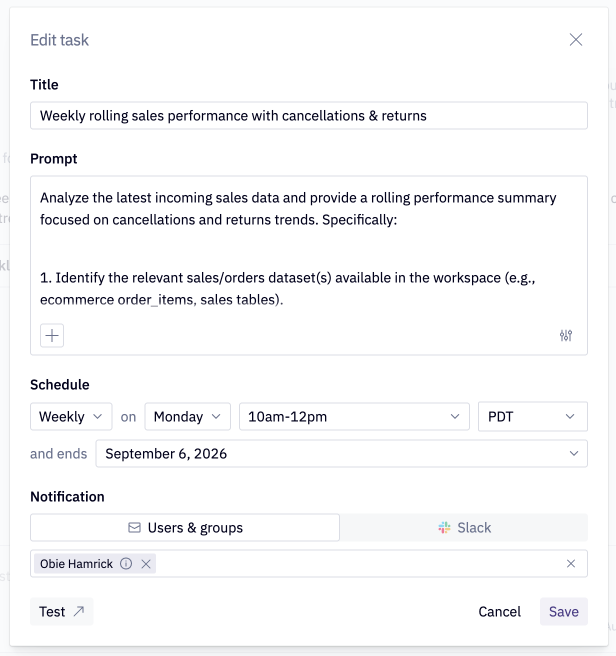
The Task editor has five things to configure:
- Title — a short name used in the Tasks page and in the notification.
- Prompt — the question or instruction the agent will run on each cadence. The same prompt-writing best practices that apply to Threads apply here.
- Context — any data connections, semantic models, or existing projects you want the agent to utilize, attached via
@-mentions in the prompt or via the '+' sign in the bottom left corner. - Schedule — see Schedule configuration below.
- Notification — a group, user, or Slack channel. See Notifications.
Schedule configuration
Tasks run on a fixed schedule — daily, weekly, or monthly — within a 2-hour delivery window you select at setup. Hex uses these windows to distribute load across the platform and keep Task runs reliable as adoption grows. Tasks don't support custom cron expressions.
Pick a cadence in the schedule selector, choose the day and time the Task should run, and save.
Notifications
Tasks reuse the same notification infrastructure as App notifications. For each Task you can configure delivery to:
- A Slack channel - Requires the Hex Slack integration to be enabled and the Hex app to be a member of the destination channel.
- Users & groups - Delivered to email or Slack DMs depending on each user's notification preferences.
The notification contains the Task title, the agent's answer (visualizations and text), and a link back to the underlying Thread so recipients can keep exploring.
What happens when a Task runs
Each time a Task fires, Hex creates a new Thread that is tied to the Task creator. The Threads agent runs the saved prompt against the saved context as if you had typed it fresh — searching data, writing SQL, building visualizations, and producing an answer.
The agent has access to previous Threads from the same Task as context, so it doesn't need to re-derive baseline setup work on every run. But each run is its own analysis: a fresh Thread you can open, explore from, save as a project, or share, exactly like any other Thread.
Task creators can reply to the notification to continue the analysis:
- For Slack notifications, replying in the Slack thread continues the underlying Hex Thread — the same model as Hex Agent in Slack.
- For email notifications, the creator can click open the linked Thread in Hex and continue from there.
Tasks page
A dedicated Tasks entry in the left sidebar is the home for everything you've scheduled. From here you can:
- See every Task you've created, its schedule, last run status, and next run time
- Open the most recent Thread produced by a Task
- Pause, edit, or delete a Task
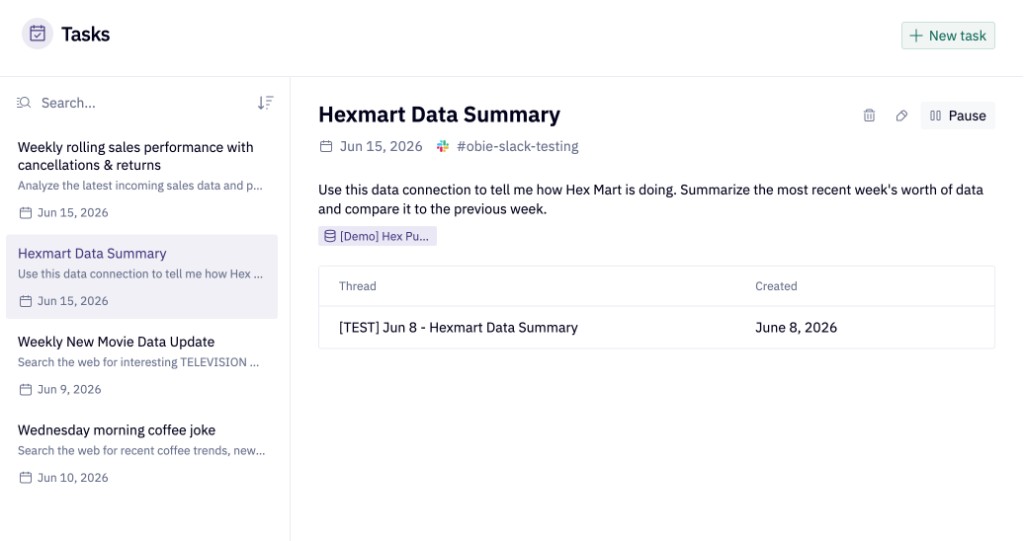
Because Tasks are single-player (see Permissions), this view is private to you and only shows the Tasks you own.
Pausing, expiring, and deactivation
- Pausing - Any Task can be paused from the Tasks page. A paused Task stops firing immediately and can be resumed later without losing its configuration or history.
- Expiration - Tasks have a configurable expiration date so they don't run forever. When a Task expires it stops firing; the creator can extend the expiration from the Task editor.
- User deactivation - When a Hex user is deactivated, all of their Tasks are automatically canceled. Tasks must be recreated by an active user to resume.
Permissions
Tasks themselves are single-player: only the user who created a Task can view and edit the configuration of the Task. The Threads produced by Tasks follow the same sharing model as any other Thread: they can be shared with individual users, groups, or the entire workspace, and recipients can fully interact with them — including exploring from results — but additional prompts can only be sent by the original Task creator.
Notification recipients need at least Can view results access on the underlying data connections used in the Thread to open it in Hex.
OAuth and Tasks
When a Task runs against an OAuth data connection, it uses the Task creator's OAuth credentials to execute queries, ensuring the Task always sees exactly the same data its creator has access to. This is the same model as Hex Agent in Slack.
If the connection requires personal credentials for authoring and Sharing results is Keep private to each user, the resulting Thread cannot be shared with other users in the workspace — but the notification will still deliver to the Task's configured destination.
If the Task creator's OAuth session expires, the next run will fail and the creator will be notified to reauthenticate.
Tasks and credits
Each Task run consumes AI credits the same way a Thread does. If a Task run is blocked by a credit issue, the Task itself is not deleted and will run normally once credits are restored.
Tasks vs. Scheduled runs
These features sound similar but solve different problems:
- Scheduled runs execute a previously published Hex app on a schedule, refreshing its results and optionally updating the published view. Use Scheduled runs when you have a curated, code-driven analysis and want to keep its outputs fresh.
- Tasks run the Threads agent against a fresh prompt on a schedule, producing a brand-new analysis each time. Use Tasks when the question — not the analysis — is the thing you want to repeat.