External Apps
Connect Hex's agent via MCP to external apps like Notion, Linear, or your own custom MCP-compatible tools.
Hex agents can use tools from External Apps that your Hex Admin configures. For example, agents can search Notion docs, create Linear issues, or call tools you've built and hosted yourself.
How External Apps work
Admins choose which External Apps and which of their tools are available to the workspace. Users then connect the apps they want to use — with their own account, or with shared credentials provided by an Admin — and configure how much approval each tool requires before the agent can call it.
A tool is a discrete action the Hex agent can call on an external system — like "search Notion pages" or "create Linear issue". External Apps expose these tools to Hex over MCP.
Set up an External App (Admin)
- Go to Settings > Integrations or Context Studio > Apps.
- Enable an External App:
- For Notion or Linear, select Enable & Connect.
- For a custom app, select + Custom MCP server and configure the MCP-compatible endpoint.
- Once saved, the External App becomes available for users to connect.
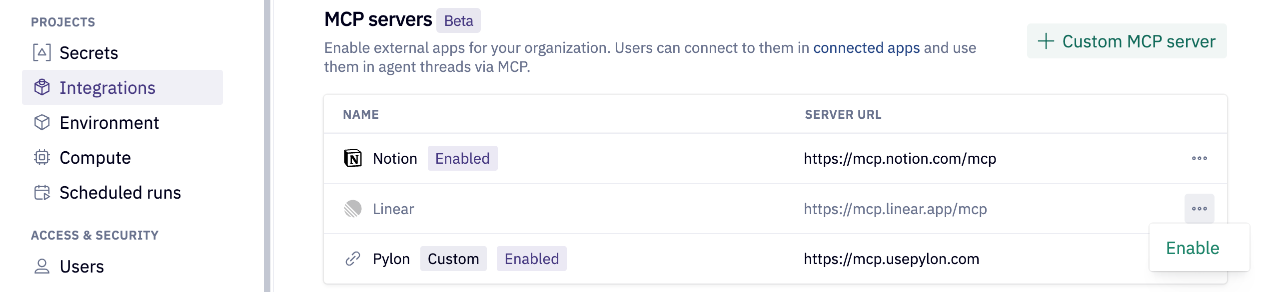
Available External Apps
Hex currently supports Notion and Linear as first-party External Apps. These apps have a streamlined one-click setup, and are vetted and trusted by Hex.
You can also set up a custom External App to any app or tool that exposes an MCP endpoint. When adding one, provide:
- Name — how the app appears to users and the agent.
- Description — what the app does. The agent uses this to decide when to call its tools, so be specific!
- Server URL — the MCP endpoint.
Authentication methods for custom External Apps
Admins choose an authentication method based on what the server supports:
-
OAuth — Users sign in to the external app through a standard OAuth pop-up. If the MCP server supports automatic registration, no extra setup is needed.
- If the server requires you to pre-register Hex as an OAuth app with their provider first, expand Advanced in the dialog and use the Redirect URI shown in the dialog when registering the app. Once registered, enter the Client ID, Client Secret, and optional scopes from the registration.
-
User provided — Each user enters their own credentials when connecting. Supported types: Bearer token, Basic auth, or API key, with optional custom headers.
-
Include credentials for users — One shared set of credentials provided by an Admin and used for all users. Best for when access should use a shared service account or workspace-level credential instead of individual user credentials.
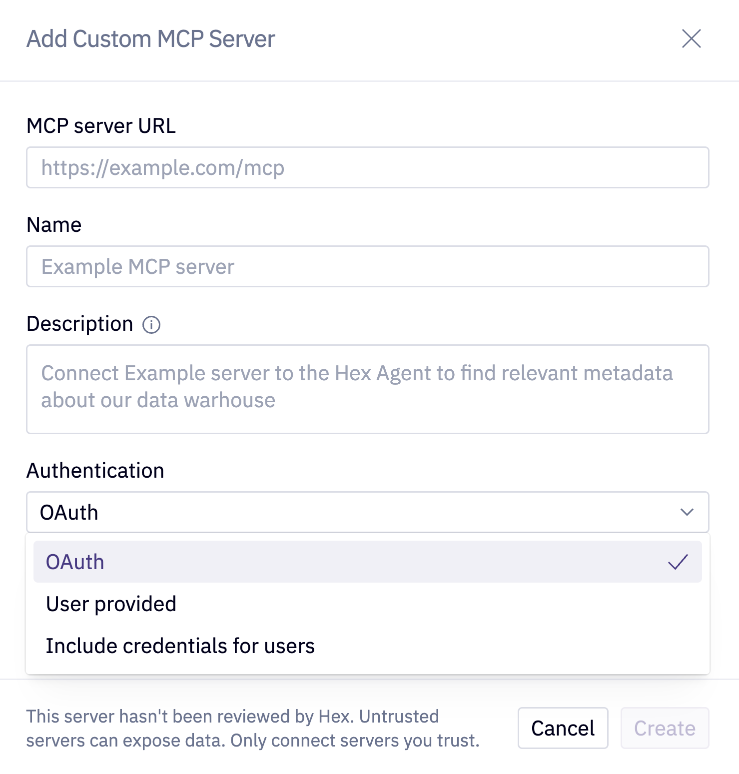
Configure available tools (Admin)
Each External App exposes a set of tools to the Hex agent. Admins choose which tools are available to the workspace.
- Open Settings > Integrations, click the tool count next to an enabled app (e.g., "12 allowed, 3 denied"), or use the ⋯ menu.
- Toggle individual tools on or off, or use the section header toggle to enable/disable all available Read-only or Write tools at once. You can hover over each tool to get a description of what each tool does.
- Set a default policy for new tools to control how Hex handles tools the server adds in the future. You can always allow them, allow only read-only ones, or always block them until an Admin reviews.
- Click Save. Disabled tools are hidden from user config and the agent is aware they are disabled.
Connect to External Apps as a user
After an Admin sets up an External App, users need to connect to it themselves before using it in Hex.
- Go to Settings → Connected apps → External apps.
- Find the app and select Connect.
- Complete the authentication flow.
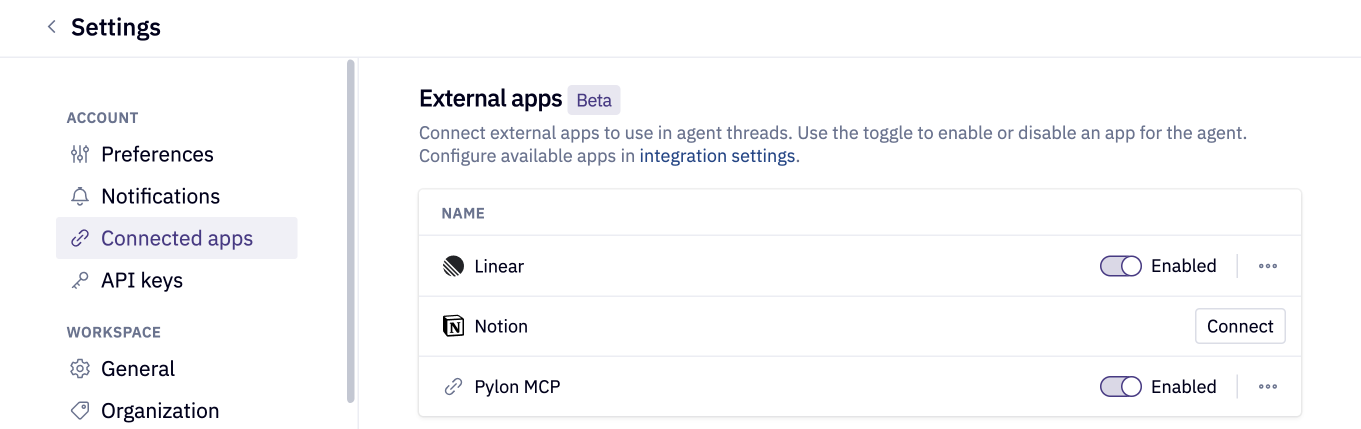
Once you authenticate, the app is enabled automatically.
Connecting an External App only enables it for you — it does not expose it to other users in your workspace. Use the ⋯ menu to reconnect or disconnect without affecting other users.
Configure tool permissions (User)
Within the tools your Admin has enabled, each user controls how much approval each tool requires. To control tool approval:
- Click the ⋯ next to an External App, then click Tool Settings.
- For each tool, pick Always allow, Always ask, or Block. You can also use the section header to apply the same choice for all tools in the section.
- You can set a default for new tools. This rule applies to any tool you haven't set explicitly.
- Click Save.
Use External Apps in agent chats
Once connected, Hex agents can call the app's tools in any conversation.
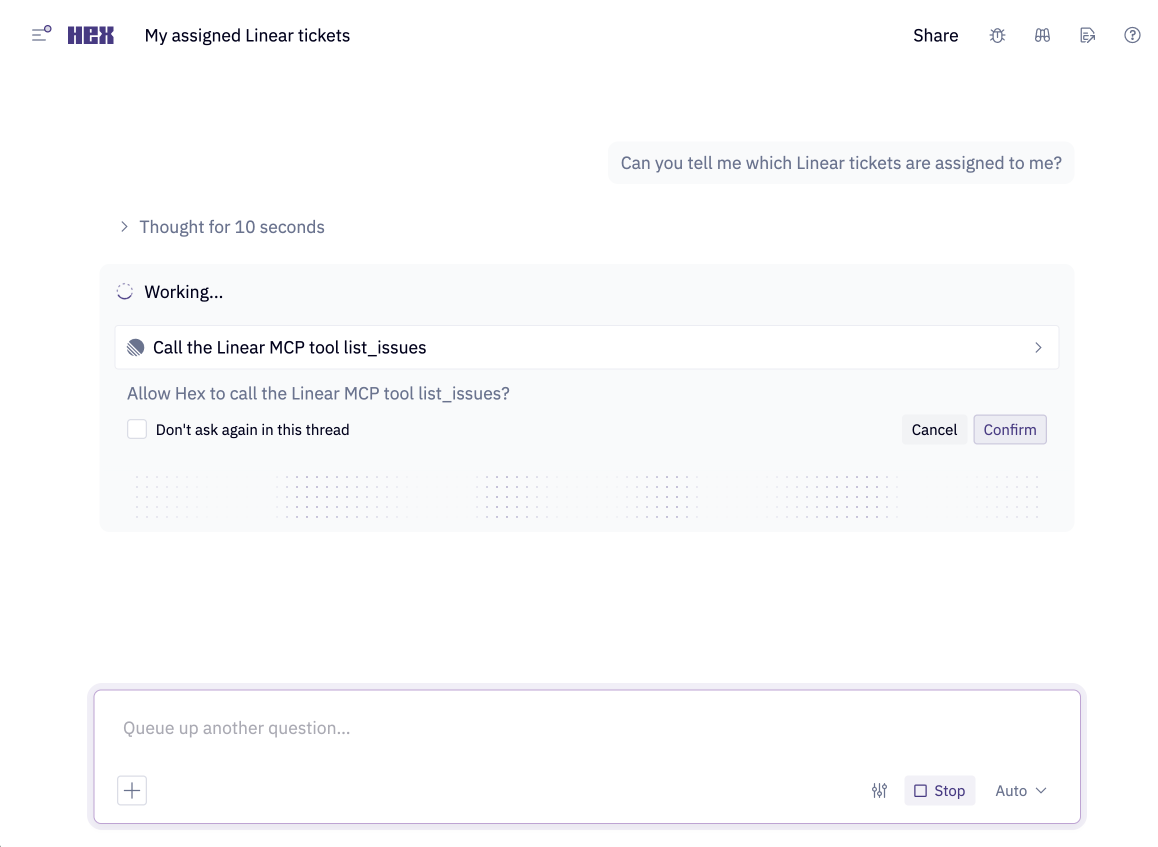
When the agent calls a tool, what happens depends on the tool's policy:
- Always allow — the agent runs the tool automatically without interrupting the conversation.
- Always ask — the agent pauses and shows an approval prompt with the tool name, arguments, and a description of what will happen. Nothing runs until you accept.
- Block — the agent cannot call the tool and will work around it or surface that the action is unavailable.
External Apps are not currently available from the CLI, API, or other headless entry points.
Troubleshooting
| Issue | What to try |
|---|---|
| "Expired" badge on a connection | Reconnect from Settings → Connected apps. For OAuth, this re-runs the authorization flow. |
| Agent isn't using an External App you expected | Confirm the app is toggled on in the conversation's + menu. Make sure the app's description clearly states what it does — the agent uses it to decide when to call its tools. |