Get help from Hex Support
Contact the Hex Support team, and learn how to get a faster answer.
Hex Support is here to help you get unblocked. Whether you're troubleshooting an unexpected issue, have a question about how a feature works, want to share feedback, or request a new feature, our team of Product Experts is ready to help.
Contact Hex Support
| Method | Details |
|---|---|
Write to support@hex.tech. Available on all plans. | |
| In-product chat | Send a message from the ? menu in the bottom left of Hex. Available on Teams plans and higher. Chat isn't real-time and we reply during support hours only. |
| Docs chat | Ask a question in the chat on learn.hex.tech. If it can't resolve your question, you can hand off to the Support team from there. |
| Shared Slack or Teams channel | Enterprise customers can ask questions in a shared channel with the Hex team. |
Support hours
Hex Support is available Monday through Friday, 9am to 5pm PT. We acknowledge every message within 24 hours and prioritize requests based on your support plan.
Get a faster answer
To help us start investigating right away, include the following details when you contact Support:
- What you expected to happen, and what happened instead
- A link to the project, app, or thread where it happened and share the project with support
- Debug info copied from the notebook or app where the issue happened
- The exact error message, copied as text, or a screenshot
- When it started, and whether it ever worked before
- Who is affected, and whether there is a deadline
- Anything you've already tried
Try to keep each conversation focused on a single issue so we can track it from start to finish. If something new comes up, start a new conversation. To follow up on an existing issue, reply in the same conversation.
Share your project or thread with Support
Hex Support can only open projects and threads that have been shared with us. To share one, open the project or thread, click the ? menu in the bottom left, and toggle on Share with support.
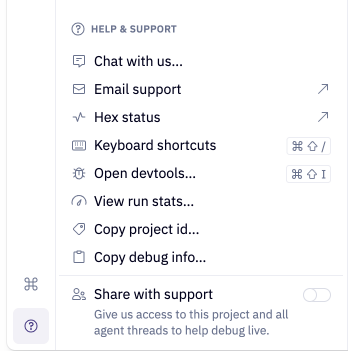
In Hex 4.0 projects, the ? menu is in the top right instead of the bottom left.
If you can't open a project, you can share it with Support from the Home page instead. Find the project, click the three-dot menu next to it, and select Share with Hex Support.
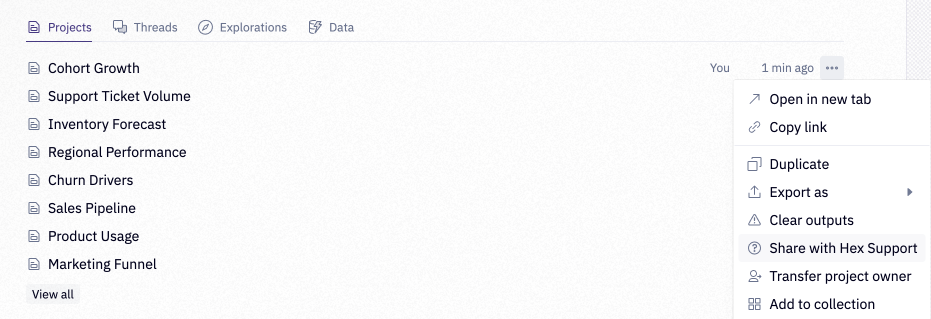
Sending us a link isn't enough on its own, since Support can't open a project unless it's been shared. If your project contains sensitive data, you can duplicate it and trim it down to the smallest example that shows the problem, using sample or masked data instead.
When a project is shared with Support, a banner appears at the top of the notebook to let you know. You can stop sharing at any time, such as once the investigation is complete, by toggling off Share with support in the ? menu or by clicking the Unshare button in the banner

Share debug info
Debug info is a snapshot of technical details from your session, including the Hex version you're on, any recent errors, and your connection history. Including it in your message gives Support the context we'd otherwise have to ask for, so we can start investigating sooner.
If you run into an issue while building or editing in the notebook, click the ? menu in the bottom left and select Copy debug info, then paste it into your message to Support. It's in the same menu as Share with support, so in Hex 4.0 projects you'll find it in the top right.
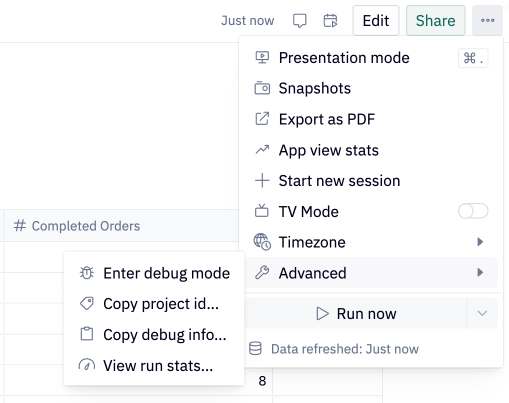
If the issue shows up while using a published app, such as an app that won't load or inputs that don't update results, copy debug info from the app. This captures what app viewers see, which can differ from the notebook. Click the three-dot menu in the top right, select Advanced, and then select Copy debug info and paste it into your message to Support.
What happens next
After we review your request, we'll let you know whether it's a question we can answer right away, something we need to investigate further, or a bug we're escalating to our engineering team. If more details would help our investigation, we'll ask you for them.
If your issue is a bug, we'll work on a reproduction and share the issue with the engineering team that owns the feature. If you're providing feedback about how a feature works, we'll share it with our product team. While we can't commit to timelines for feedback, every request is read and tracked.
Report an urgent issue
Before reaching out about an urgent issue, check the Hex status page, where we post updates on high-impact incidents. If your issue isn't listed and it's affecting many users or blocking critical work, mention this in your first message and include who's affected.
Other helpful resources
| Resource | Details |
|---|---|
| Status | status.hex.tech lists incidents we're currently investigating. |
| Changelog | New features and product updates are posted in the changelog. |
Holiday schedule
Hex Support is closed on the following holidays each year:
- New Year's Day
- Martin Luther King Jr. Day
- Memorial Day
- Juneteenth
- Independence Day
- Labor Day
- Thanksgiving and the day after
- Christmas Eve and Christmas Day
We also close for a winter break between Christmas and New Year's. Exact dates change from year to year.
If you contact us during a holiday or the winter break, you'll receive an automatic reply with our return date, and we'll respond once we're back. If your issue is urgent, reply to the automatic message and let us know how it's affecting your work. We continue to monitor for urgent issues and incidents during holidays, and all other requests are handled when we return.