Governed mode
Steer Hex agents toward the data sources your team trusts.
With Governed mode, admins choose which warehouse data, semantic models, and projects Hex agents should use to answer questions. You can limit agents to endorsed data, semantic models only, or a custom mix. When enabled, agents are guided to work from these trusted sources.
Governed mode is the next evolution of Endorsed mode. Workspaces using Endorsed mode have their settings carried over - that is now represented as the "Endorsed data only" option.
How Governed mode works
Governed mode's data sources setting covers three types of assets:
- Warehouse data: tables in your data connections.
- Semantic models: datasets and views in your semantic layer.
- Projects: existing Hex projects and published apps the agent can use as context.
When Governed mode is on, the agent works from the data sources your admins have selected. When it's off, the agent can use any asset the user has access to, though it still gives priority to endorsed assets when they're relevant.
Data sources are set for the whole workspace and apply to everyone using Governed mode.
Governed mode strongly steers the agent toward the sources you choose, but it isn't a hard security boundary and doesn't replace data permissions. To restrict access to sensitive data, use data connection permissions.
Configure trusted data sources
Only Admins can configure Governed mode.
- Open Settings > Governed mode.
- Choose a data source configuration.
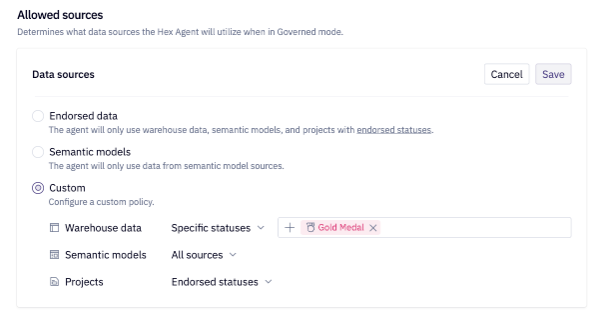
- If you choose Custom, configure each asset type.
- Select Save.
Endorsed data
The Endorsed data option includes only warehouse data, semantic models, and projects with an endorsed status. This matches the previous Endorsed mode configuration.
Semantic models only
The Semantic models option limits the agent to your semantic layer. The agent uses all semantic models, not only endorsed ones. It doesn't query warehouse tables directly or retrieve other projects as context. It can still use SQL or Python to calculate and visualize results retrieved through semantic models.
Custom
The custom policy lets you configure trusted sources separately for warehouse data, semantic models, and projects.
| Option | Sources included |
|---|---|
| All sources | All sources of that type. |
| Endorsed statuses | Sources with any endorsed status. |
| Specific statuses | Sources with the specific statuses you select. |
| None | No sources of this type. |
For example, you could include only warehouse data with a specific status, all semantic models, and all projects with an endorsed status.
Set workspace behavior
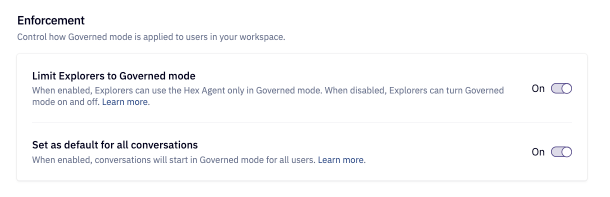
Admins control whether Explorers must use Governed mode and whether conversations start in Governed mode.
In Settings > Governed mode, configure these settings:
- Limit Explorers to Governed mode: Requires Explorers to use Governed mode and prevents them from turning it off. When this setting is off, Explorers can switch between Governed mode and all assets.
- Set as default for all conversations: Sets whether agents start in Governed mode for all users who haven't picked their own default.
Set your personal default
Editors, Managers, and Admins can choose their own default in user preferences, under Default agent data access:
| Option | Behavior |
|---|---|
| Workspace default | Follows the default your admin set |
| All assets | Starts the agent with all sources available through your permissions |
| Governed mode | Starts the agent with your workspace's Governed mode configuration |
Switch modes in a conversation
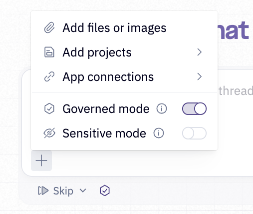
You can turn Governed mode on or off for a single agent conversation, unless you're an Explorer and your admin has turned on Limit Explorers to Governed mode. Click + in the prompt bar, then toggle Governed mode.
Governed mode and permissions
Governed mode guides the agent's source selection. It does not change your permissions.
- Trusted sources still require permissions. If a table, semantic model, or project is a trusted source but you don't have access to it, the agent can't use it on your behalf.
- It only affects the agent. Users can still query any data they have access to directly, for example in SQL cells.
FAQ
What happened to my Endorsed mode settings?
Governed mode replaces Endorsed mode, and your existing settings and preferences carry over automatically. Workspaces that previously used Endorsed mode start with Endorsed data selected. You can review or update your configuration under Settings > Governed mode.
Why isn’t the agent using a table or semantic model I know exists?
The source might be excluded by your workspace’s Governed mode configuration, or the agent may be searching a different data connection. Try specifying the connection and source name. If the source is excluded, ask an Admin to review the configuration, or turn off Governed mode for that conversation if your role allows it.
Do changes to Governed mode settings apply to existing conversations?
Yes. Changes to your workspace's Governed mode configuration apply to future agent responses in existing conversations, as well as new conversations. They do not change previous responses or a response already in progress.
Can I limit the agent to semantic models only?
Yes. In Settings > Governed mode, choose Semantic models. See Semantic models only.