What is Hex 4.0?
- Hex 4.0 is in private beta, and some features from classic projects aren't yet supported. See Limitations below.
- Workspace Admins can email beta@hex.tech to request access to the private beta.
- Users need an Editor role or higher to create 4.0 projects during the beta period.
Suddenly, data teams are responsible for a lot more: code they didn’t write, answers they didn’t review, apps they didn’t even know existed. Everyone is using AI agents to chat with their data and “vibe code” on top of it. They’re working around legacy BI: pulling in scattered context, burning tokens, and passing around random HTML files – a massive sprawl of AI data stuff that nobody can govern or observe.
Most of this is actually great news: more people can use data in their day-to-day work than ever before. But it can feel impossible for data teams to manage.
Today, we’re introducing Hex 4.0 to solve exactly this. It’s the next major version of our platform, built to embrace AI agents and code, with the context and controls necessary to make it actually work for your company at scale.
With 4.0:
- It’s easier than ever to ask questions from Hex’s UI or external agents like Claude, Codex, or Cursor, and then publish and share them securely
- It’s finally possible for data teams to have a first class tool for reviewing agent-generated analytics code to know how something was built and if anyone should trust it
- Apps in Hex run way faster due to our all-new execution engine
Perhaps most importantly, 4.0 sets the foundation for a huge number of new workflows for Hex that previously wouldn’t have been possible. Read more about the vision behind 4.0, or keep reading to learn how 4.0 projects work.
Projects in Hex 4.0
4.0 projects are defined entirely by code, from queries and logic to visualizations and app layout. The code lives in a file directory, which both the Hex agent and external agents read from and write to. But you do not need to read or write code to use a 4.0 project! Prompt the agent with your questions, edit charts with point-and-click controls, and select any result to understand and review the underlying logic.
Create a 4.0 project
While in the beta stage, users with Editor roles or higher can create 4.0 projects.
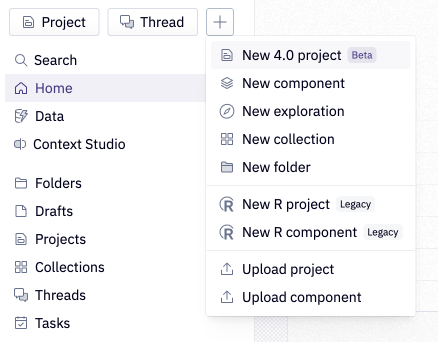
To create a new 4.0 project, select New 4.0 project from the + menu on the home page.
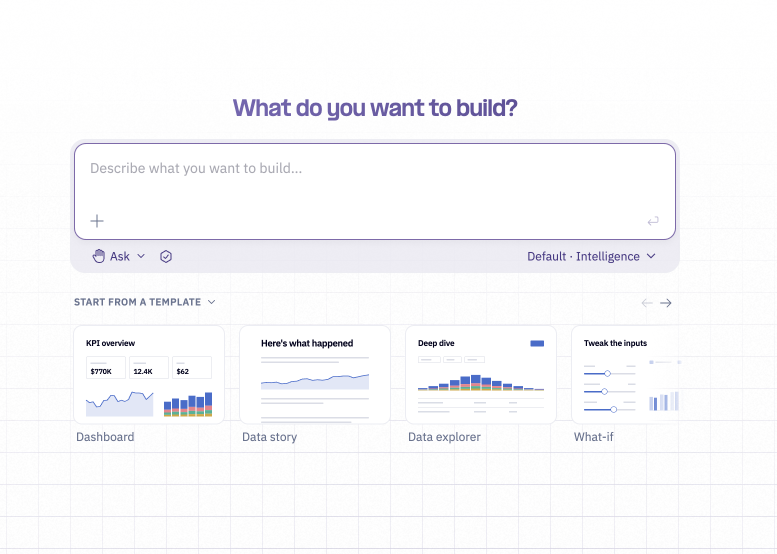
Prompt the Hex agent to ask a data question or build an app. You can also start from one of our pre-built templates, such as a dashboard, data story, data explorer, what-if analysis, or slides.
4.0 projects can also be created using an external agent, such as Claude, Codex, and Cursor, connected through the Hex MCP server. See Work with external agents (MCP) below.
Work in 4.0 projects
Work with the Hex agent
Use the Hex agent like you have historically to answer quick questions, perform deep analysis, and generate beautiful data apps.
Projects can be edited within Hex's UI using the Hex agent, or via an external agent of choice connected through the Hex MCP server. Both approaches use your workspace's context, including semantic models, endorsed data, and workspace guides.
Notebook view
The project's Notebook view displays the SQL, Python, and TypeScript logic that underlies a 4.0 project. Users can manually edit and add cells in this view.
Generative apps
Generative apps in 4.0 Projects give you full control over presentation and styling, while also providing workflows to inspect and understand the logic behind every element.
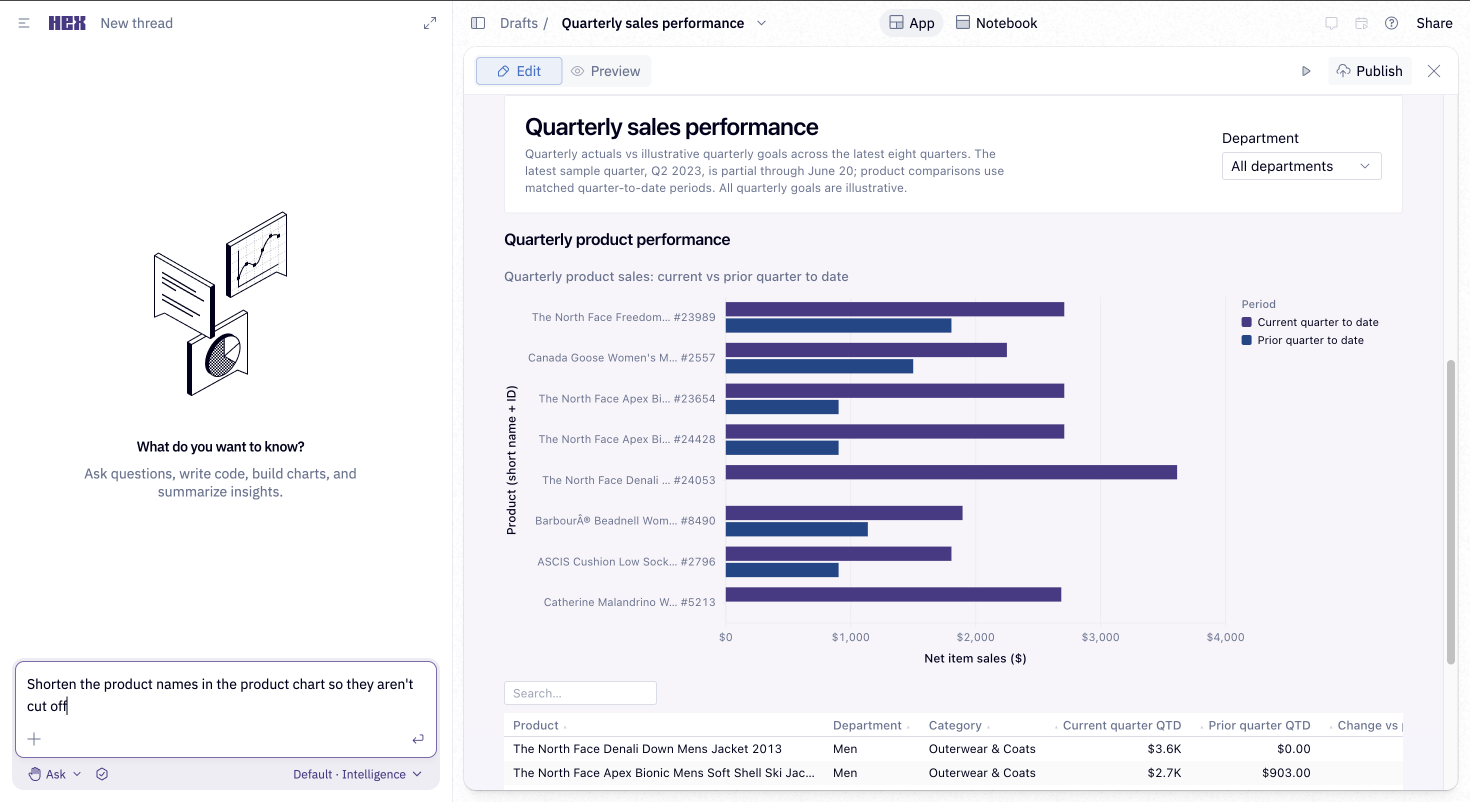
As with our existing generative apps, you can prompt the main agent for sweeping style changes, use quick edits for targeted quick changes, or use chart controls for last-mile manual tweaks.
Inspect agent outputs
Our new Inspect view gives you a way to immediately understand the work an agent did to arrive at a given result. Select any element in a generative app and click the Inspect view to get a high-level text summary of the underlying logic, all underlying data sources, and a summarized view of the upstream lineage. Use one click to dig deeper and reveal the exact code used. For the highest level of detail, click through to the Notebook view for a full-screen UI with all the inputs and outputs.
Use the Graph and Outline views
The Graph view is accessible from the Notebook in a 4.0 Project. It shows how the cells in a project relate to one another, and offers an easy way to understand the how specific pieces of logic interact and build off of each other. Use the Lineage view to focus on a specific subset of related cells.
The Outline view lists the cells in the Notebook and can be used for quick navigation and organization. Click on a specific cell to focus on it in the UI, and use the Lineage view to understand how it interacts with upstream and downstream cells.
Edit manually
You can make direct edits to the app without prompting the agent with point-and-click chart controls. From the App view, select a chart and then select Style to open up the style pane. Any chart styling options that are missing can be added by prompting the agent!
It's also possible to edit logic directly and add cells manually in the Notebook view. Hover over the Add Cell bar in between any two cells and select from SQL, Python, or Typescript cells.
View and edit the underlying code files
4.0 Projects are defined entirely by files of code, which is the format agents work with best when reading and editing Hex projects. We believe interacting with raw code files isn’t the most efficient way for humans to work, which is why we built the Notebook UI and Inspect workflows to help you review agent-generated logic and develop it yourself. If you'd like to view and edit the underlying files directly, you can do so by opening the dropdown menu next to the project title and selecting "View project files".
Work with external agents (MCP)
Connect your preferred external agent of choice to Hex through the Hex MCP server to turn questions into analyses and apps your team can trust. Your agent brings context from where you already work, and Hex adds the context your data team has built, including semantic models, workspace guides, and endorsed data. The external agent builds the work in Hex, where it runs on your live data and your team can easily review how it was built before securely sharing it out.
External agents can:
- Use your workspace context, including workspace guides, semantic models, table schemas, and existing projects
- Build 4.0 projects on your workspace's data connections
- Check their work by running queries and previewing the app before it's shared
- Publish apps that others open in Hex, with your workspace's permissions
- Bring existing work into Hex, such as rebuilding a dashboard created in Claude as a 4.0 project
- Put data behind a decision: “Here’s our expansion plan. Use Hex to check which customer segments have the strongest growth and retention.”
- Go from answer to app: “Why did revenue drop last quarter? Break it down by segment, then build a Hex app so the team can explore the drivers.”
- Give your prototype real data: “Rebuild this customer-health dashboard in Hex using our actual usage and revenue data.”
During the beta, you may need to explicitly prompt your external agent to use “4.0 project tools” or “Code project tools” to build 4.0 projects.
Limitations
4.0 projects are currently in a beta stage, and some features are not yet supported (although we're working on supporting them as quickly as we can!). Some current limitations are below: