Folders
Curate your workspace with nested folders.
- Available to all users on the Professional and Team plans.
- On the Enterprise plan, folders are available by default only to Admins, who can enable them for all users under Settings → Organization.
- The Professional plan is limited to 3 shared folders.
- Admins can create top-level folders and view and manage all folders.
Folders provide a way to organize projects and components in Hex. You can group related work and nest folders inside each other to create a structure that reflects how your organization works. As your workspace grows, folders make it easier to navigate and find what you need.
Beyond organization, folders give you more control over who can access your resources. With inherited permissions, access granted to a folder extends to its contents, allowing you to manage permissions across multiple resources in one place.
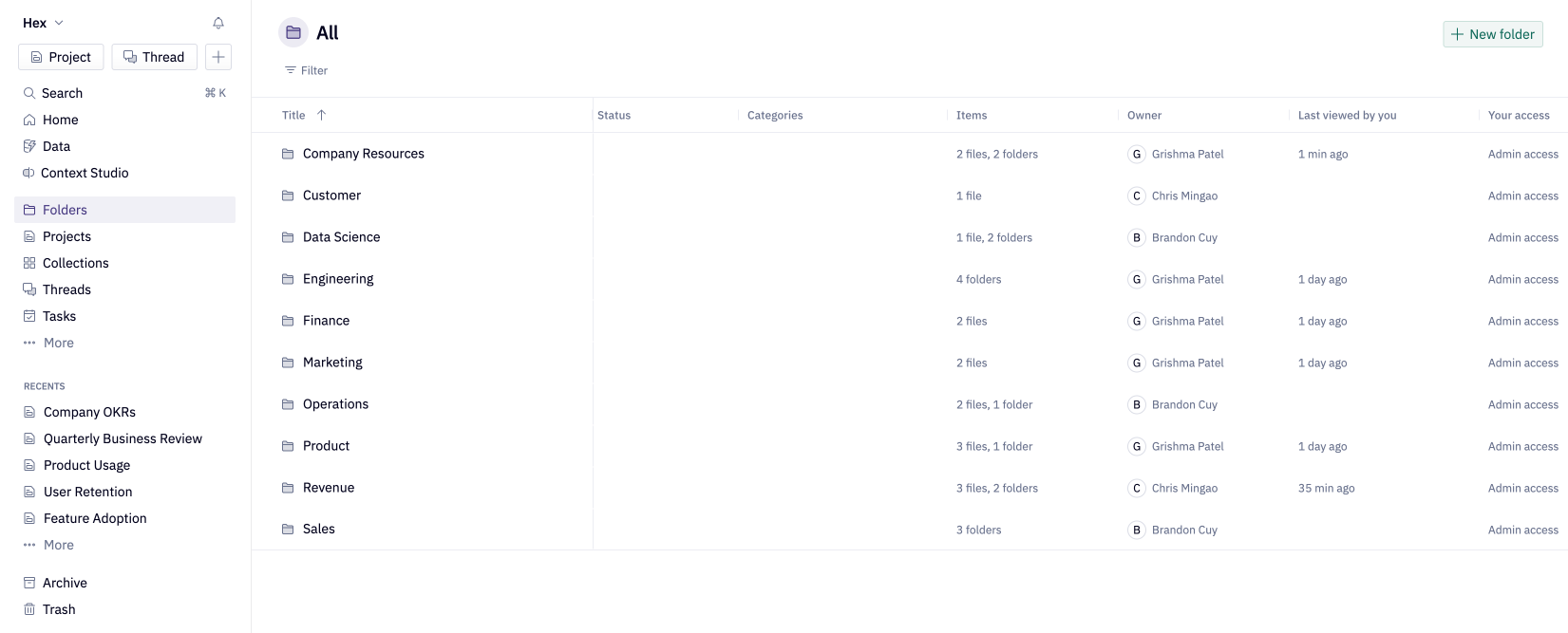
Create a folder
Workspace Admins can create top-level folders.
To create a folder:
- Navigate to Folders
- Select New folder in the top-right corner
- Enter a folder name
- Set folder access and permissions (Admins and users with Full access only)
- Select Create folder
New folders default to Only invited people access. Users with permission to manage folder access can choose broader sharing options during creation.
If a folder with the same name already exists in the same location, Hex adds a number to the new folder's name, such as "Folder (2)."
Add items to a folder
Users with at least Can edit access to a folder can add items to it.
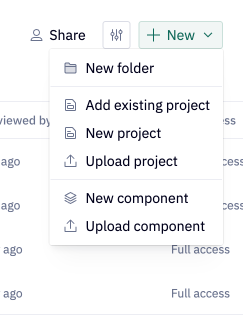
From within a folder, select + New to add items directly:
- Add existing project: Add a project that already exists in Projects into the folder
- New project or New component: Create a new project or component that starts in the folder
- Upload project or Upload component: Upload a
.yamlor.ipynbfile (max 50 MB) as a new project or component in the folder - New folder: Create a subfolder within the folder
Browse and navigate folders
Navigate to Folders to view the folders you have access to. Select a folder to view its projects, components, and subfolders. Folders can be nested up to 10 levels deep. Use breadcrumbs to navigate between folder levels.
Users with access to a nested folder or project can still see the names of its parent folders in the breadcrumb path, even if they don't have access to those folders. However, they cannot view the other projects or subfolders within those parent folders.
Move projects, components, and folders
Projects and components can be moved into, out of, or between folders. You can initiate these actions from Projects, Components, or Folders. Each project or component can belong to only one folder at a time.
Move an item to a folder
Moving a project, component, or folder requires Full access to the item and Can edit access to both its current parent folder and the destination folder. Admins can move any item.
To move an item:
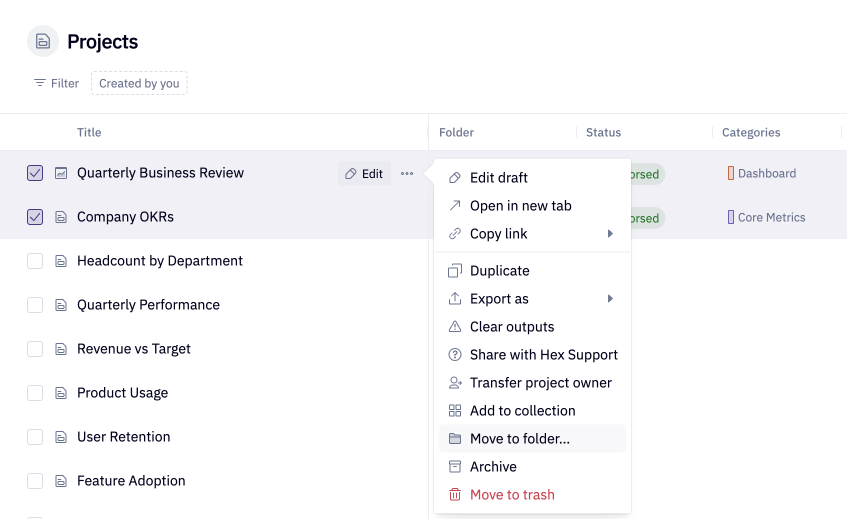
- Open its action menu
- Select Move to folder...
- Select a destination folder
Remove an item from a folder
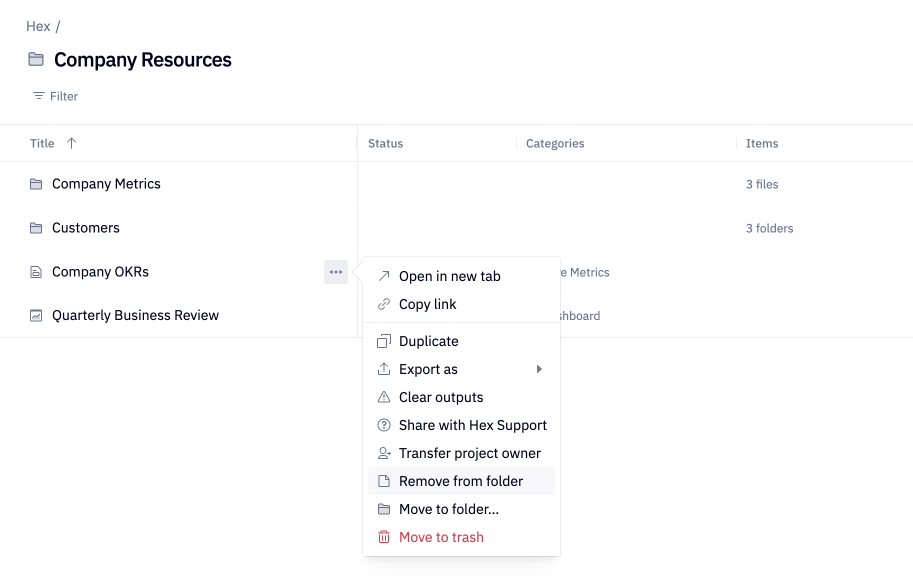
Admins can remove any project or component from a folder. Other users must own the item, have Full access to it, and Can edit access to its current folder.
To remove a project or component from a folder, open its action menu and select Remove from folder.
Rename a folder
Admins can rename any folder, while users with Can edit access can rename folders they have permission to edit.
To rename a folder:
- Open the folder's action menu
- Select Rename
- Enter a new name and select Rename
Share a folder and manage permissions
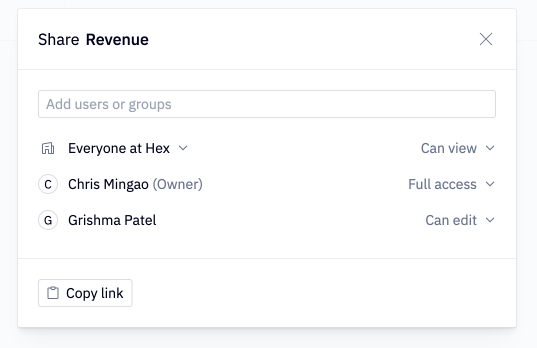
Folders can be shared with the entire workspace, individual users, or groups. Folder permissions determine what users can do within a folder and what access they inherit to its contents.
Folders support three permission levels:
| Permission | On a folder | Items within the folder |
|---|---|---|
| Can view | View the folder | Inherits Can view access |
| Can edit | View, rename, and add items to the folder | Inherits Can edit access |
| Full access | Everything in Can edit, plus manage access and delete the folder | Inherits Full access |
To share a folder or update its permissions, select Share from within the folder.
Understand inherited permissions
Projects, components, and subfolders inherit permissions from their parent folders. When moved, they inherit permissions from the destination folder instead. Any permissions granted directly to the project, component, or folder remain unchanged.
When a user has multiple permission grants, the most permissive permission applies. For example, if a user has Can edit access to a project but inherits Can view access from its parent folder, they retain Can edit access to the project.
Trash and restore folders
Admins or users with Full access can trash, restore, and permanently delete folders.
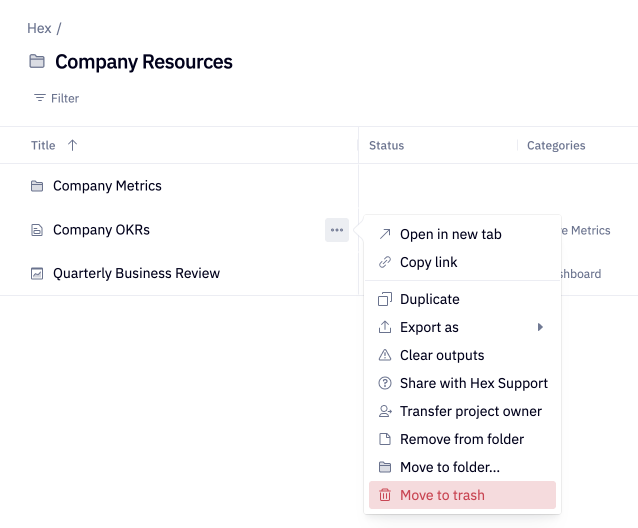
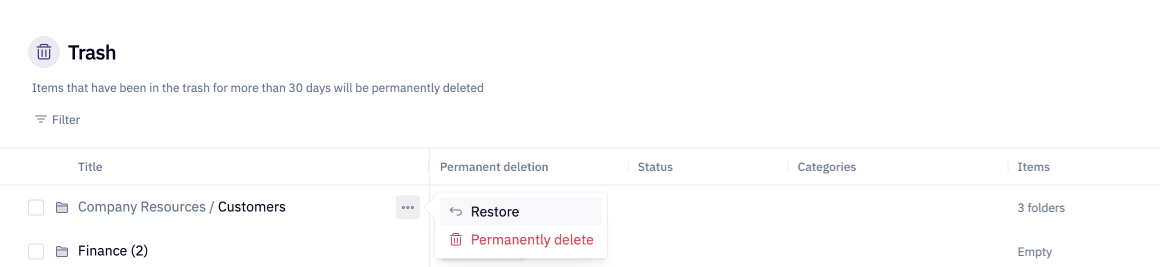
Trashing a folder also trashes its contents, including nested folders, projects, and components. Restoring the folder restores its contents. Permanently deleting a folder is only possible from Trash. Items in Trash are automatically deleted after 30 days.
To trash a folder:
- Open the folder's action menu
- Select Move to trash
To restore a folder:
- Navigate to Trash
- Locate the folder you want to restore
- Select Restore from the folder's action menu
Best practices
- Share folders with groups. Groups are easier to keep up to date when people join, leave, or change teams. Manage group membership in Hex, or with directory sync.
- Set access on folders. Folder access applies to everything inside, so it stays consistent as projects are added. Grant access on a project directly when one person needs an exception.
- Keep the root of the workspace small. Create a small number of folders there, for example one per team, then let each team organize its own subfolders.