TV Mode
Automatically reload your app when new scheduled run results are available.
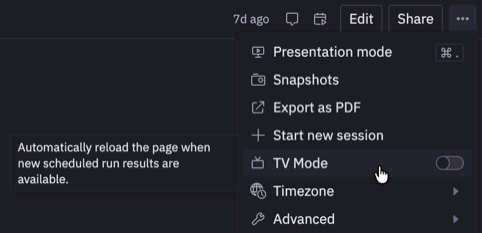
TV Mode is designed for displaying Hex apps on monitors, TVs, or any always-on display. When enabled, the app automatically reloads the page whenever new results from a scheduled run become available, ensuring viewers always see the latest data without manual intervention. To enable TV Mode, click the three-dot menu in the top-right corner of a published app and toggle TV Mode on.
How it works
When TV Mode is active, the app listens for updates from scheduled runs. When a scheduled run completes, the page automatically reloads to display the fresh data. The setting persists per browser tab.
TV Mode also works with saved views. If you're viewing a saved view with its own scheduled run, the page will reload when that saved view's results are updated.
Because TV Mode relies on scheduled runs, the app only needs to run once regardless of how many displays are showing it. This is more resource-efficient than having each TV trigger its own app run.
Best practices
- Prevent screen sleep: Configure your display device to prevent the screen from sleeping or locking.
- Disable tab sleeping: Modern browsers may suspend inactive tabs to save memory, which can prevent TV Mode from working properly. Check your browser settings to disable tab sleeping or memory saver features for the tab displaying your app.