Connect to Redshift (AWS)
Securely connect your Hex workspace to Redshift (AWS).
- Users need the Admin workspace role to create a shared workspace data connection.
- Users need Can Edit or higher project permissions to create project data connections.
Redshift is an Amazon Web Services (AWS) cloud data warehouse built for large-scale analytics on structured data. It's a mature, feature-rich platform that integrates deeply with the AWS ecosystem (S3, Glue, QuickSight, etc.) and offers strong price-performance, especially if you're already invested in AWS. Redshift is columnar and optimized for complex analytical queries across petabytes of data, making it an ideal warehouse for intensive analytics workloads, especially if you're already AWS-native.
How to get set up
- Sign in to the AWS Redshift console, or a create an account if you don't have one.
- Set up the credentials Hex will use to access Redshift. You can authenticate with a username and password (or certificate), or with an IAM role that Hex assumes to obtain temporary credentials, so no long-lived secrets are stored in Hex. See IAM role authentication below.
Currently only AWS users who do not use MFA authentication are supported.
- In Hex, go to Settings → Data sources.
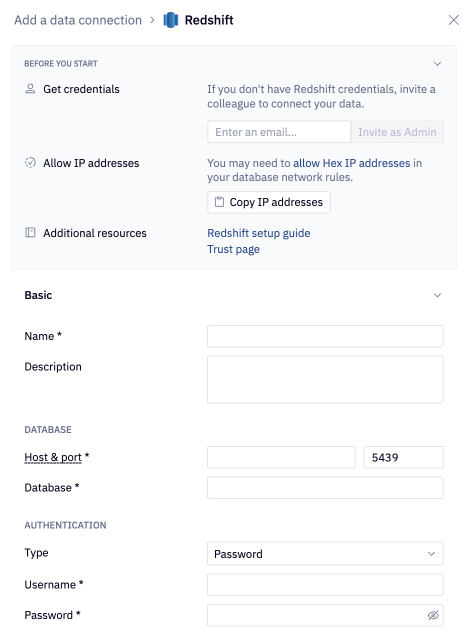
- Click + Connection, select Redshift, and fill out the required fields.
Basic settings
- Name and Description - Set a display name and optional description to help identify your data connection.
- Host and Port - The address of your Redshift database, and the port used for secure native connections to your Redshift database. The default port is 5439.
- Database - The name of the Redshift database you're connecting to.
- Authentication type - Choose how Hex authenticates to Redshift:
- Password or Certificate - Enter the required credentials for the selected method.
- IAM role - Enter the Role ARN for the IAM role Hex should assume. See IAM role authentication for the full setup.
You can't switch an existing Redshift connection to use IAM role authentication. The authentication type must be configured when the data connection is first set up. To use IAM role authentication for an existing connection, create a new data connection.
IAM role authentication
With IAM role authentication, you don't store long-lived AWS credentials in Hex. Instead, you create an IAM role in your AWS account and grant Hex's AWS principal permission to assume it. Hex calls sts:AssumeRole to obtain temporary credentials, scoped by an external ID.
-
Create an IAM role in AWS
In the AWS IAM console, create a new role with a policy granting the appropriate Redshift access for your data connection and a placeholder trust policy. Copy the role's ARN. -
Save a draft connection in Hex
In the Redshift connection form, select IAM role authentication, enter the role ARN, and save the connection as a draft. -
Update the trust policy in AWS
Hex generates an external ID and IAM trust policy when you save the draft. Copy them into your role's trust policy in AWS. -
Finalize the connection in Hex
Return to the draft in Hex and complete the setup.
Hex includes the external ID on sts:AssumeRole but not on sts:TagSession. If your trust policy applies an sts:ExternalId condition to both actions, validation fails with an AccessDenied error on TagSession. Split your trust policy into separate statements (with distinct SIDs) and apply the external ID condition to sts:AssumeRole only.
Additional settings
The data connection form includes several optional sections:
- Advanced - Optional settings like custom SQL formatting, including schema data for AI, and connecting via SSH.
- Access - Optional data connection permissions.
- Schema browsing - Recommended settings like scheduling schema browser refreshes and schema filtering, both of which are recommended for performance and AI agent accuracy.
If you use a firewall to restrict database access, you'll need to add Hex's IP addresses to your allowlist.